Waiting on Hub review
What to do after you submit an opt-in that your Hub must approve, including requested changes.
Who Sees What?
This page is for workspace owners waiting on Hub review. Hub admins approve or request changes from Hub Opt-Ins.
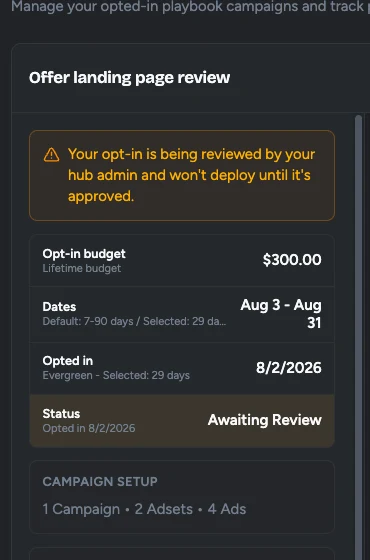
Some playbooks need your Hub to approve the opt-in before ads can run. The review covers the whole submission, not only the media: budget, dates, answers, and any pre-launch task your Hub requires. Open My Playbooks to check your status.
You submit
Complete and submit your opt-in. It goes to your Hub for review. The run shows Awaiting Approval and does not deploy until they approve it.
If they request changes
Your dashboard shows the run as Needs Revision, and the opt-in shows the reviewer's Changes Requested feedback. Read the reviewer's feedback in the email and on the opt-in, update your submission, and resubmit. It goes back to Awaiting Approval.
After they approve
The run moves to Queued or Launching, then Running once it is live. You can still change a live run after that, with no new approval.
You can edit the opt-in while it is Awaiting Approval. After changes are requested, you must resubmit. Flamel emails you on days 1, 3, 5, and 7 while Changes Requested stays open. See Review Email Reminders.
When review is skipped
Review happens only when the Hub turns on Hub approval for the playbook. Some opt-ins deploy without waiting, for example when default media is allowed to bypass review or when a re-run reuses media that was already approved.