Hub Opt-Ins
Find, filter, and review playbook opt-ins across every workspace in your Hub.
For Hub Admins
Hub Opt-Ins is the Hub-wide queue for workspace playbook submissions. Use it to find a submission, check its status, and open it for review.
Open Paid Social Ads, then Playbooks, then Opt-Ins to see every workspace submission for your Hub in Hub Opt-Ins.
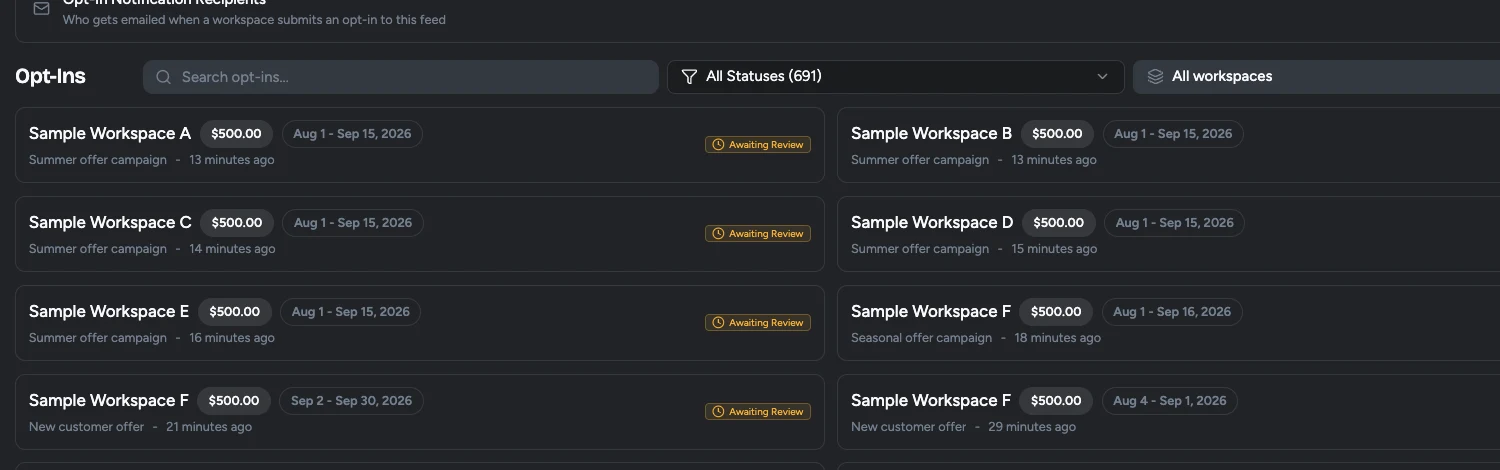
1. Find the submission
Use Search opt-ins to look up a workspace or playbook by name. Use the All workspaces filter to narrow the queue to one location.
2. Filter the queue by status
Open All Statuses and select the lifecycle you need. Choose Awaiting Approval to focus on submissions that are blocked until a Hub admin acts. You can use the queue to find items that are Scheduled and still waiting for their start date, Running, On Hold, Finished, or Stuck and in need of follow-up, and Pending Billing for runs held because an ad account refused billing.
3. Open an opt-in
Select the workspace submission to open its playbook review. Check the submitted answers, selected media, budget, dates, and any manual pre-launch requirement before you decide.
4. Approve or request changes
Choose Approve when the submission is ready to launch. Choose Request Changes when the workspace needs to update its answers, media, or another prerequisite. The workspace receives the feedback, updates the opt-in, and resubmits it for review.
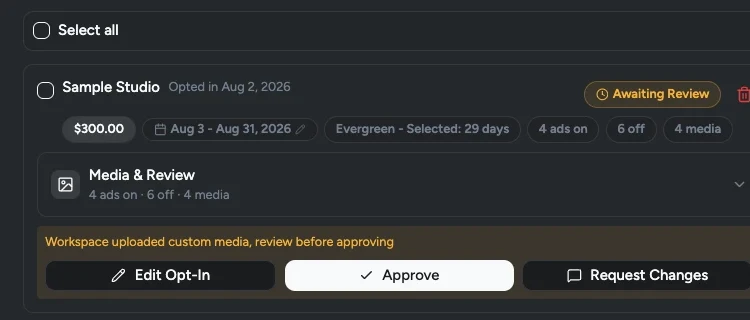
A useful review routine
Start each review session with Awaiting Approval, then use workspace search when a location asks about a specific submission. Approve only when the entire opt-in is ready, including any external prerequisite such as publishing an offer landing page. Approval releases the deployment gate; it does not perform or verify the external task for you.
Check Pending Billing on the same pass. A run lands there when Flamel saved the opt-in but the ad account refused billing, so nothing was created at the ad platform. Approval cannot clear it. The workspace has to fix the payment method on the ad account, and then the held run is retried.
See Playbook Review Required for the complete workspace-to-Hub approval flow, and Review Email Reminders for who receives the notification and reminder emails.