Creating Playbooks
Build a playbook that franchisees can understand, opt into, and launch without extra explanation.
For Hub admins
Playbooks are reusable campaign blueprints. Workspaces opt into them with local budgets, creative, and targeting details pulled in at launch.
Before you start:
- Confirm workspaces have connected their Meta ad accounts.
- Finish Ad Configuration.
- Gather any Hub-provided media you want to include.
- Create any Workspace Groups you want to use for continuously synced access.
Open Paid Social Ads, then Playbooks, then Create.
Build the Playbook
Set Up the Playbook
The first page sets who can use the playbook, how it launches, and which choices workspaces make during opt-in. Use Expand all to review every section, or open them one at a time.
Basic Information
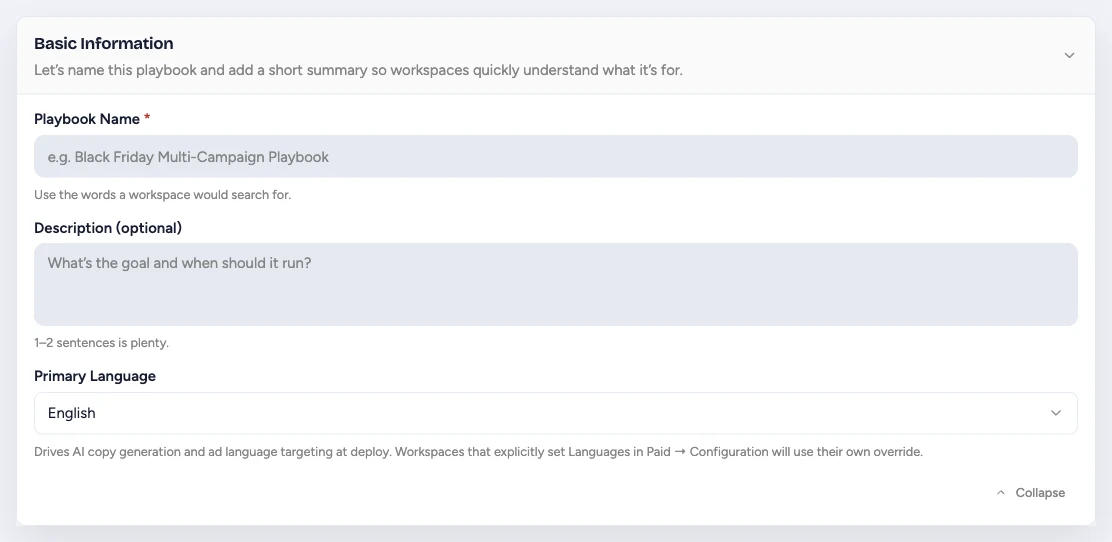
- Playbook Name is what workspace users see and search for. Name the campaign outcome or season, not your internal project code.
- Description should tell a workspace what the campaign is for and when to use it. Use one or two sentences.
- Primary Language guides AI copy generation and Meta language targeting. A workspace's language settings in Paid Social Ads > Configuration take priority when that workspace has its own override.
- Landing page URL (optional) sends every ad in the playbook to one destination, so you do not have to change each workspace's Ad Configuration. Leave it blank to keep using each workspace's own website. See Choose Where Ads Send People for which address wins.
Enter a full address such as https://example.com/fall-offer when every location should land on the same page. Enter a template such as {{website_url}}/fall-offer when each location has its own version of the page, and Flamel fills in each workspace's website from its Workspace Variables at launch. The URL applies to Meta, Google Ads, and ChatGPT Ads playbooks. An ad with its own Destination URL still uses that address instead.
Rolling out gradually
Basic Information also shows an Employment playbook switch when your Hub has the job feed connection. Turn it on to advertise open jobs. The playbook then uses your job feed, Meta's employment ad rules, and job variables, and it carries a Recruitment badge in the playbook list. See Recruitment Playbooks.
A playbook cannot change between the standard and employment types after it leaves draft, or after any workspace opts in. Meta cannot add or remove the employment declaration on a campaign that already exists. Duplicate the playbook to build the other type.
Collections
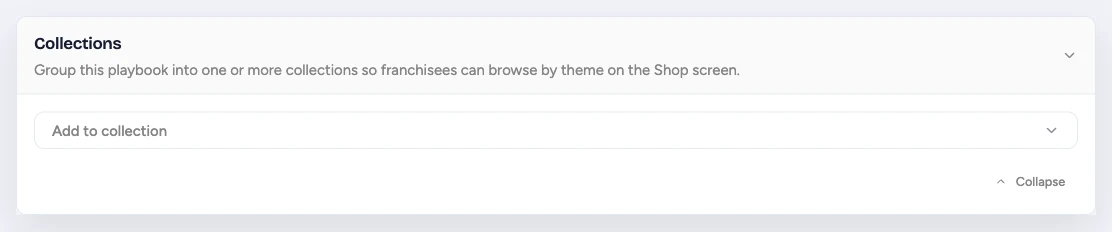
Add the playbook to one or more Playbook Collections so workspaces can browse the Shop by campaign type, season, product, or another useful theme. Collections organize the Shop but do not grant access.
Who Has Access?
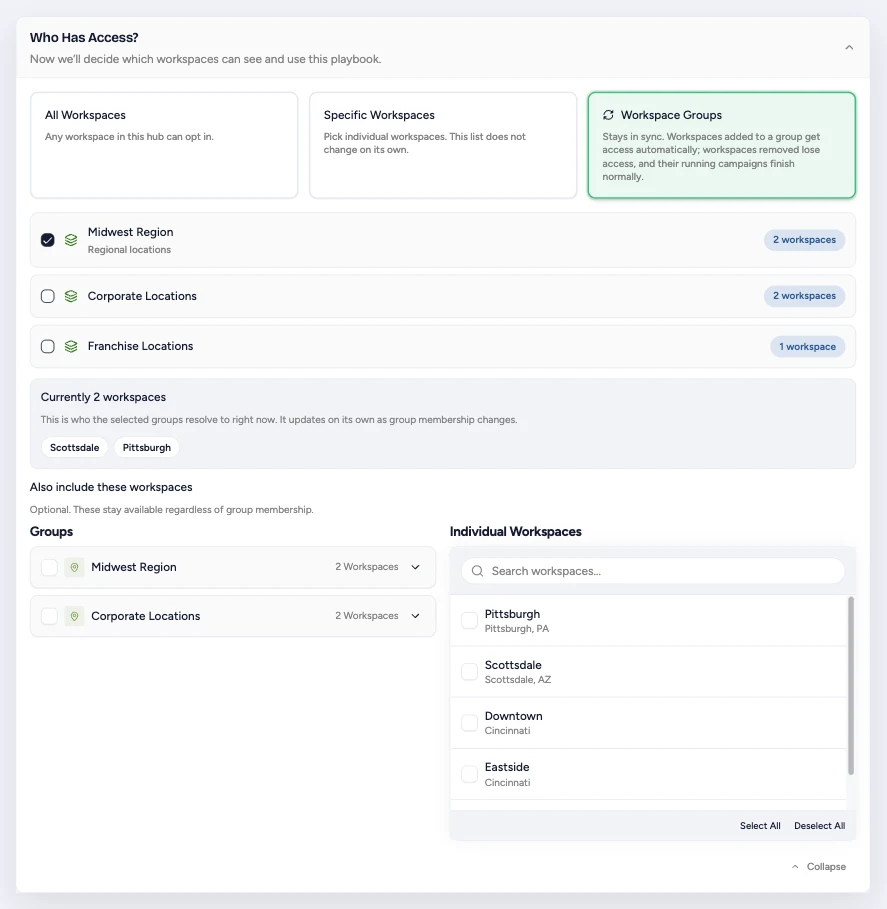
Choose how workspaces get access:
- All Workspaces lets every workspace in the Hub use the playbook.
- Specific Workspaces saves a fixed list. Use it for one-off exceptions or a campaign meant for a few named locations. The list does not update on its own.
- Workspace Groups keeps access tied to group membership. A workspace added to a selected group automatically gains access. A workspace removed from every selected group loses access to future opt-ins, while campaigns already running finish normally.
With Workspace Groups, the current resolved audience appears below the group list. Use Also include these workspaces for individual exceptions that should retain access regardless of group membership.
Use The Audience As Your Source Of Truth
Choose Workspace Groups for durable segments such as regions, markets, or ownership types. Choose Specific Workspaces only when the exception itself is the rule.
How Will You Launch The Playbook?
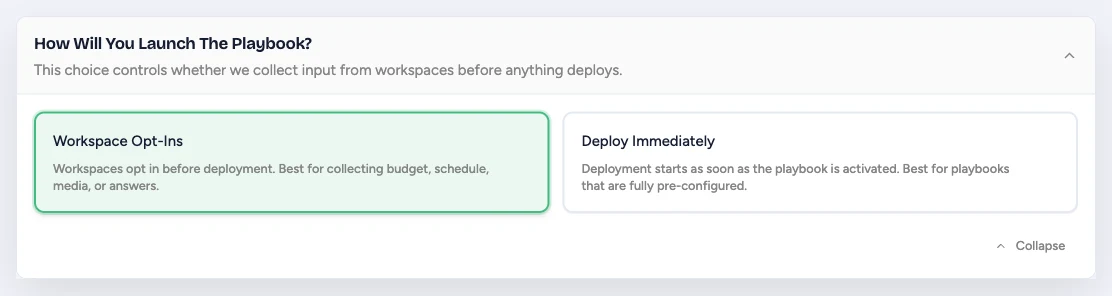
- Workspace Opt-Ins lets each workspace review the playbook and provide any permitted budget, schedule, media, or question responses before deployment.
- Deploy Immediately starts deployment to eligible workspaces when the playbook is activated. Use it only when the Hub has fully configured every required input.
Deploy Immediately is unavailable when the playbook requires workspace-provided media, a workspace-selected schedule, or another opt-in-only choice.
Playbook Budget
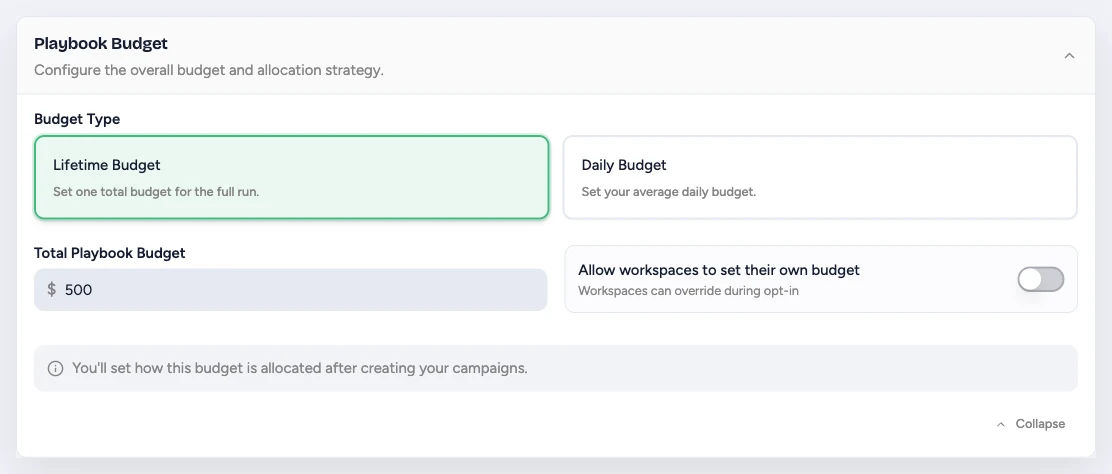
- Lifetime Budget is one total amount for the full scheduled run. A start and end date are required.
- Daily Budget is the average amount to spend per day.
- Total Playbook Budget is the budget for the whole playbook. If the playbook has multiple campaigns, you allocate that total after creating the campaigns.
- Allow workspaces to set their own budget lets workspace users replace the default during opt-in. Turn it off when every location should launch with the Hub-defined amount.
When workspace budget control is enabled, set a minimum that still gives every campaign and ad set enough budget to deploy.
What Kind Of Playbook?
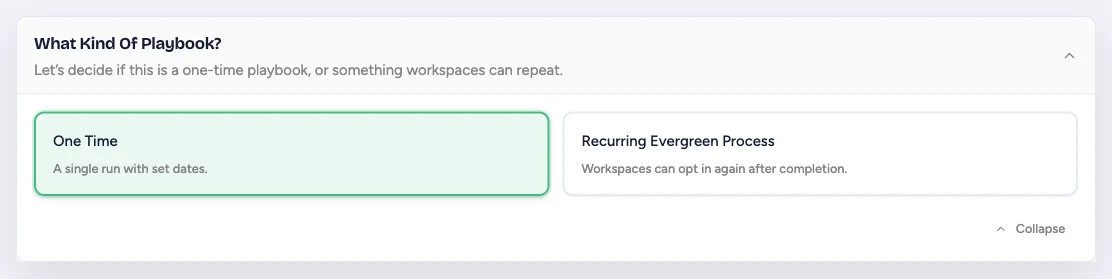
- One Time creates a single campaign run with the schedule you define. Use it for launches, holidays, and other fixed events.
- Recurring Evergreen Process lets a workspace opt in again after a run finishes. Use it for repeatable campaigns such as trial offers, hiring, testimonials, or monthly promotions.
Evergreen playbooks let workspaces choose the schedule and budget for each run. Define a duration that is long enough for the campaign to learn and deliver.
Allow Stacking
Allow Stacking appears after you choose Recurring Evergreen Process. It decides what happens when a workspace opts in again while its current run is still live.
- On: the new run launches as its own campaign with its own name, and the current run continues unchanged. Flamel adds a run number to the campaign name, such as "Spring Promo - Run 2", so each run stays separate.
- Off: opting in again updates the existing campaign to match the new opt-in. The location keeps one live campaign for the playbook at a time.
Turn stacking on when a location must promote two offers at the same time, or when a seasonal push must start before the current one ends. Leave it off when a location should hold one live campaign per playbook. Two campaigns from one playbook compete for the same audience and split delivery.
The workspace learns which behavior applies before it confirms. When the new dates overlap the current run, the confirmation step either states that the run launches as its own campaign, or warns that it replaces the current campaign.
Schedule Configuration
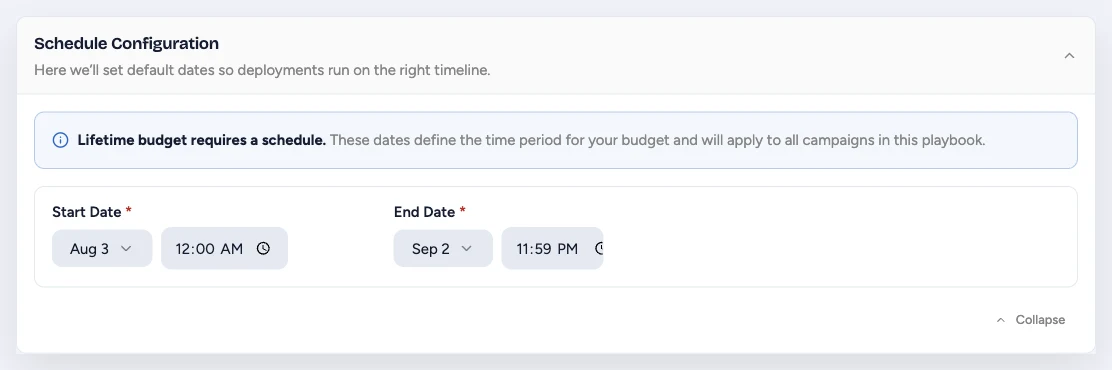
A lifetime budget requires both Start Date and End Date because the total budget must have a defined delivery window. A daily budget can use an optional start date and can continue without an end date.
For workspace opt-in playbooks, you can let each workspace choose its own dates. When you do, set duration constraints so local schedules stay within the campaign design.
Offer Variants
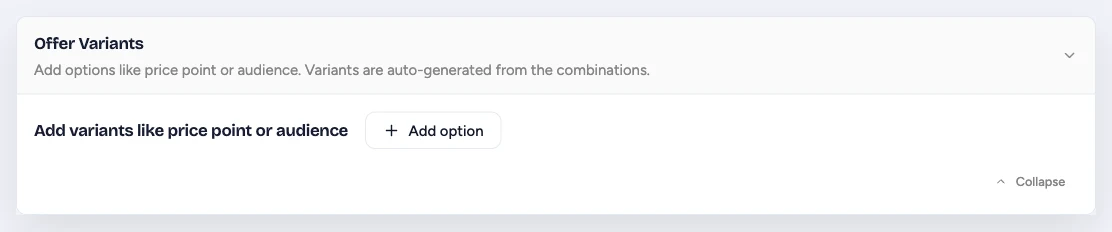
Add variants when workspaces should choose between a small set of approved options, such as price point, audience, or offer length. Flamel generates the valid combinations from the options you add.
Skip variants when every workspace should run the same offer. Fewer choices speed up opt-in and reduce review work.
Creative / Media Configuration
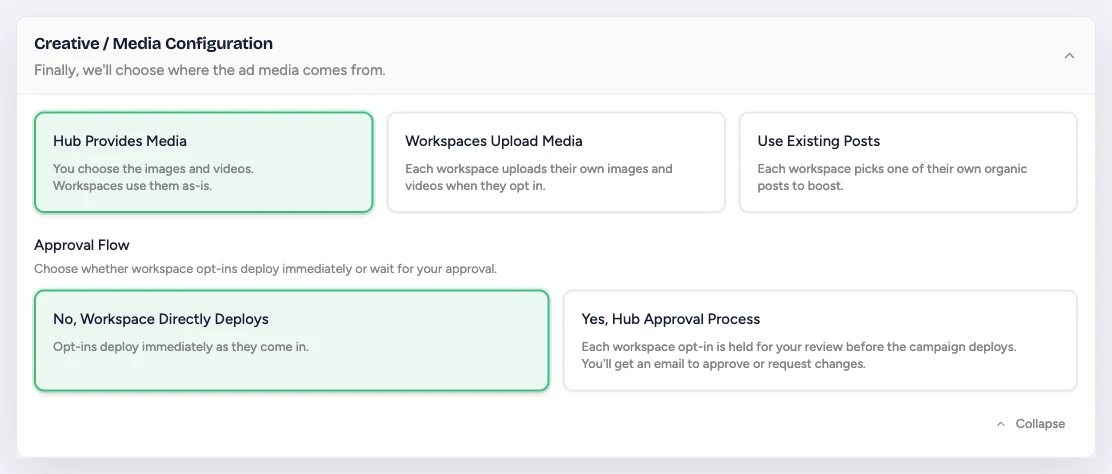
Choose where each workspace's ad media comes from:
- Hub Provides Media uses the images and videos you add to the playbook.
- Workspaces Upload Media asks each workspace to provide local creative during opt-in.
- Use Existing Posts lets each workspace choose one of its organic posts to boost.
Then choose the approval flow. This gate is independent of creative source: it works with Hub Provides Media, Workspaces Upload Media, and Use Existing Posts. No, Workspace Directly Deploys sends completed opt-ins straight to deployment. Yes, Hub Approval Process holds each opt-in for Hub review so you can approve it or request changes. See Playbook Review Required for the reviewer and workspace workflow.
Opt-In Questions
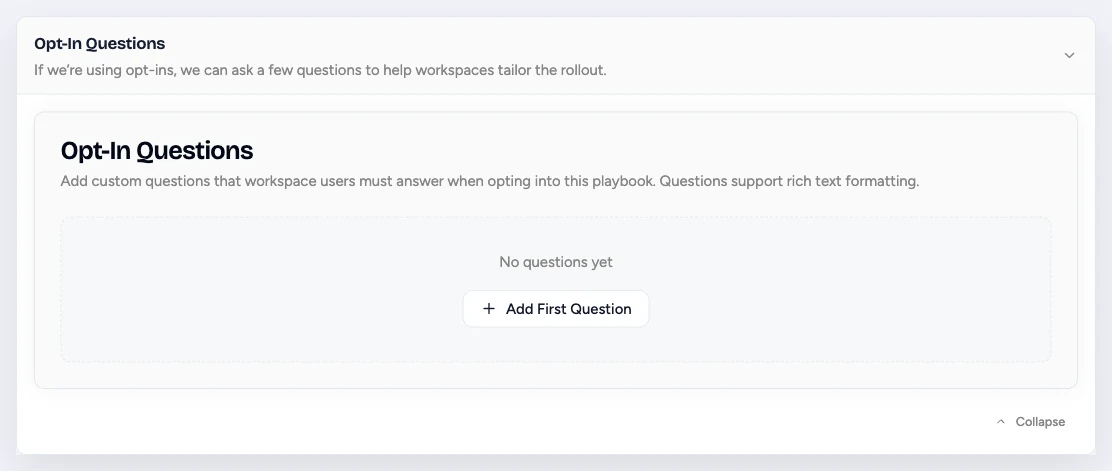
Add questions only when the answer is needed to tailor or approve the campaign. Questions support rich text and must be answered during opt-in.
Good questions ask for a concrete deployment input, such as the promoted service, local offer details, or a landing page. Avoid asking for information already stored in Workspace Variables or Ad Configuration.
Hide a question for one offer variant. When the playbook has Offer Variants, each question also shows a Visibility choice. Keep Always visible, or pick a rule such as Hide when Offer is "Free Trial". Flamel then hides that question during opt-in when the workspace picks that option, so the location answers only the questions its own offer needs.
Gate an external launch task
To require a manual task before ads go live, add a required opt-in question such as "Confirm the offer landing page is live and paste its URL." Then select Yes, Hub Approval Process. The workspace submits its confirmation and URL, and a Hub reviewer verifies the task before approving deployment. Flamel does not perform or independently verify the external task.
Notification Preferences
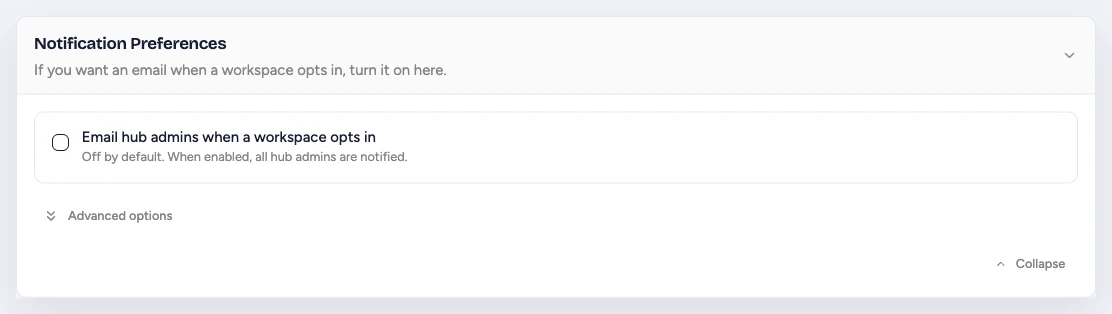
Opt-in emails are off by default. Turn on Email hub admins when a workspace opts in when someone needs to review launches or monitor adoption. You can notify every Hub admin or choose specific admins. See Review Email Reminders for recipient rules and the approval reminder cadence.
Advanced options includes a setting to silence all playbook emails. Use that only for testing or a deliberately quiet workflow.
Set The Campaign Structure

Choose the objective, campaign naming pattern, any special ad categories, and whether Meta should optimize budget at the campaign or ad set level.
The builder describes each level under the name you select:
- Campaign is where you select an objective for all your ads. It can have one or more ad sets.
- Ad Set is where you choose your audience, ad placements, budget, and schedule. It can have one or more ads.
- Ad is where you design your creative. It covers ad format, text, images, videos, and links.
Build Ad Sets and Ads

Set:
- the audience type
- where leads or traffic should go
- which page and account the ads should use
- the creative type
- the ads themselves
Destination URL
Each ad has a Destination URL field above URL Parameters. Leave it blank and the ad uses the playbook's Landing page URL, or each workspace's website when the playbook has none. Fill it in only when one ad should send people somewhere different, such as a single ad that promotes a specific class or product page. The field accepts the same full addresses and {{website_url}} templates as the playbook setting.
Single Media
Meta can combine several assets into a carousel. Click Single Media, next to the ad format, to stop that. Every impression then shows exactly one image or one video.
Flamel shows its plan for the change before you accept it:
- On most objectives, the ad set becomes two ad sets, "Images - " and "Videos - ", with the same targeting and schedule. Images and videos cannot share one single-media ad.
- On sales and app promotion objectives, a mixed ad splits into one ad per asset inside the same ad set. Every split ad keeps all of its text variations.
- When the ad set holds only one media type, nothing splits. The ads are simply pinned to the single-image or single-video format.
A split never raises the campaign total. When the campaign uses a custom or a percentage budget split, Flamel divides the source ad set's amount between the two new ad sets and keeps the sum the same. On campaigns that use campaign budget optimization, each extra ad set raises Meta's minimum campaign budget, so check that the total still clears it.
Running ads keep their current format until the playbook deploys again.
Review Before Publishing
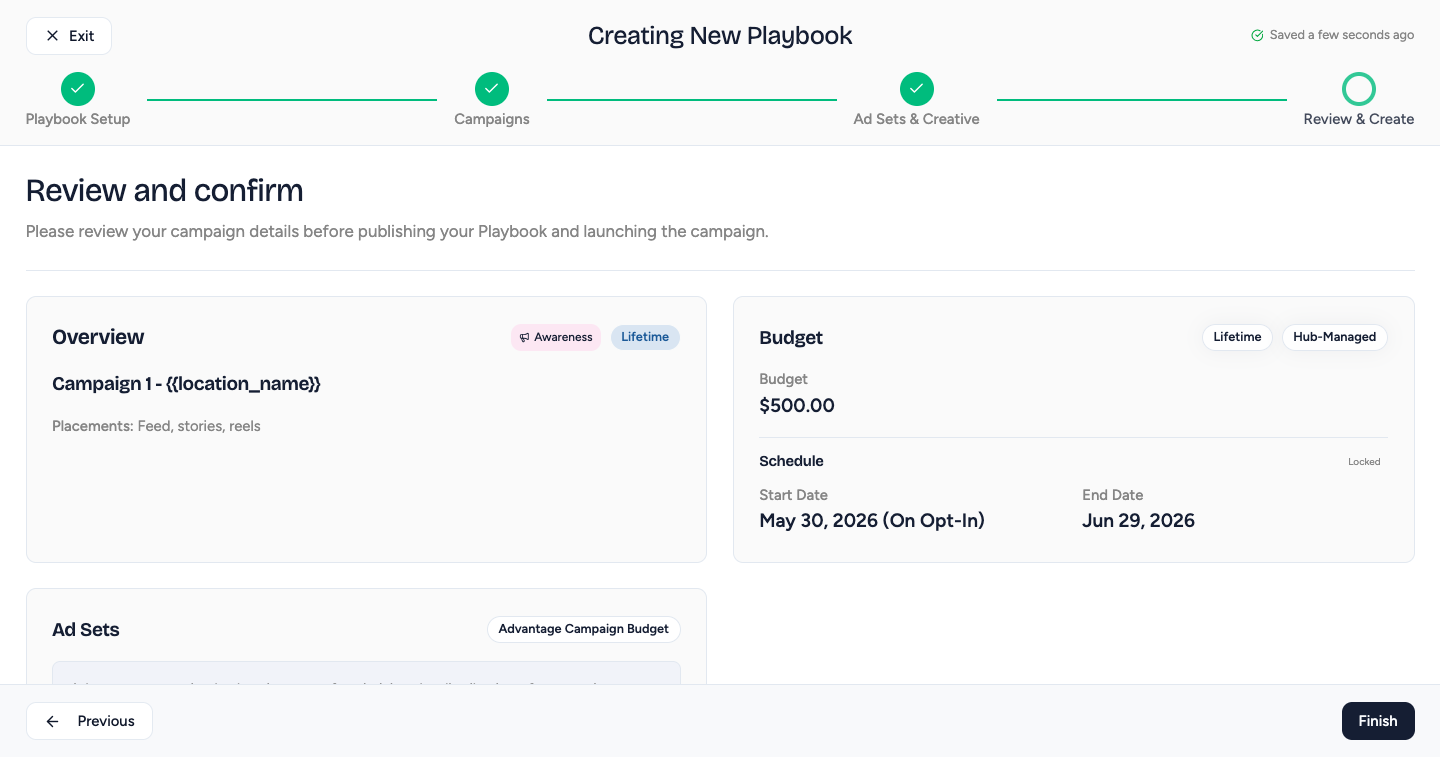
Check the budget, schedule, audience, and ad copy, then click Create.
Choices That Scale Well
- Use Workspace Groups when access should follow a region, market, or ownership model.
- Keep opt-in choices narrow. Every optional budget, schedule, media, variant, and question adds work for each location.
- Use Hub-provided media and direct deployment for highly standardized campaigns.
- Use Hub approval for any playbook when a Hub reviewer must verify an opt-in, whether the reviewer is checking creative, a boosted post, a budget or schedule choice, an answer to a required question, or an external pre-launch task.
After Publishing
- the playbook appears in the Shop for workspaces that can access it
- Workspace Group membership changes keep future access synchronized automatically
- workspaces removed from the audience cannot start a new opt-in, but their running campaigns finish normally
- future edits affect new opt-ins, not campaigns already launched
- use managing and review pages to track what workspaces do next