Workspace Media Opt-Ins
Upload and edit your location's own creative during a playbook opt-in: crop images, trim videos, mute audio, and add overlays.
When This Applies
Workspace media opt-ins are available when the Hub has set the creative source to Workspace-Level on a playbook. This allows each workspace to upload localized images or videos to use in an ad. A Hub can require approval before deployment for any playbook media source, including this one.
Upload and Edit Your Creative
Open the Media Upload Step
Start the opt-in from My Playbooks: find the playbook the Hub shared with you, click Opt In, and step through the launch checklist until you reach the Creative section. You will see an upload area for each ad in the playbook.
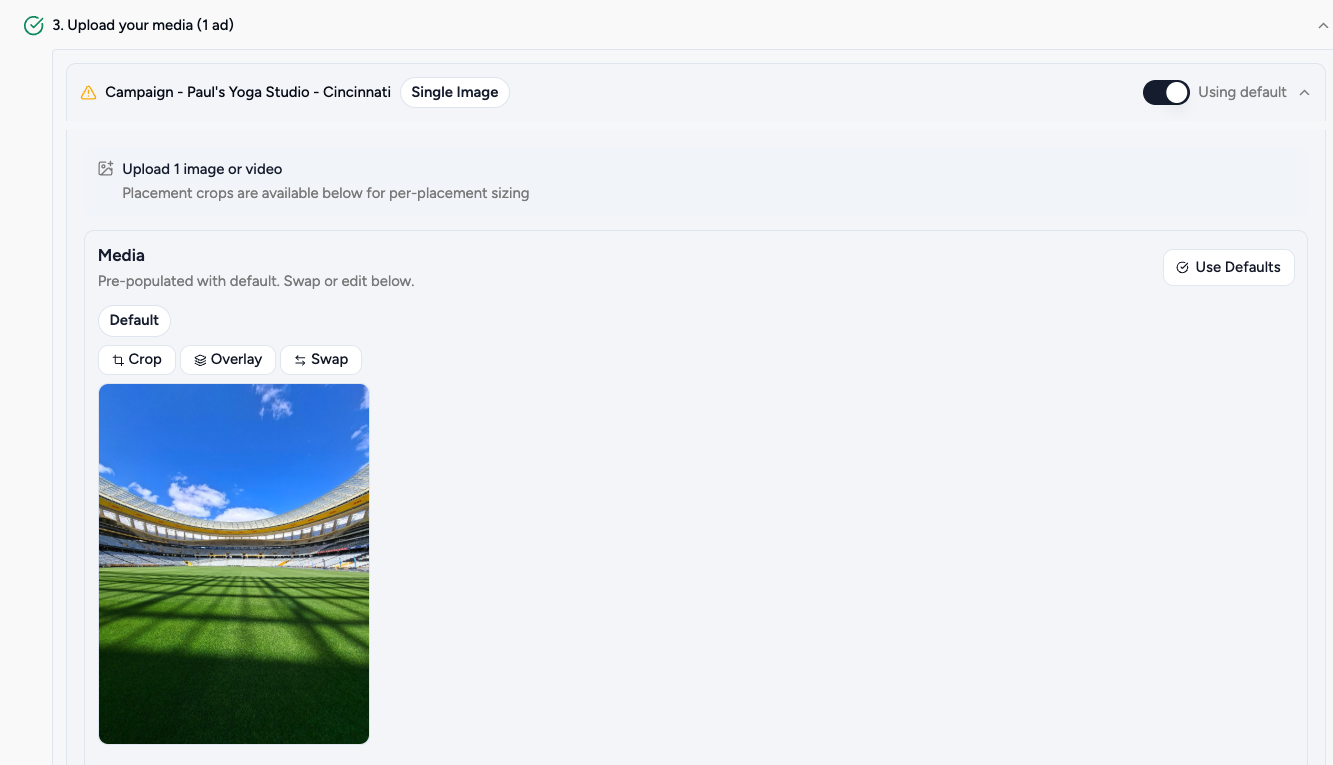
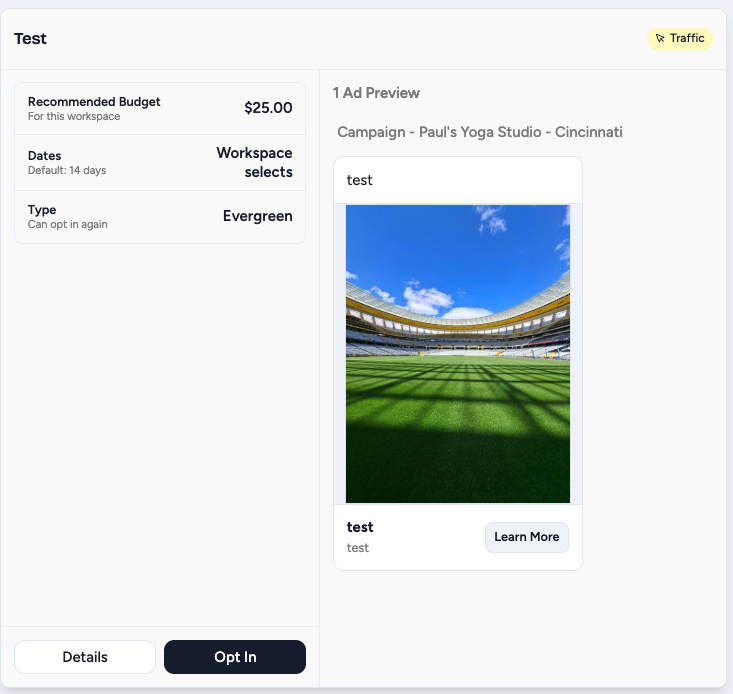
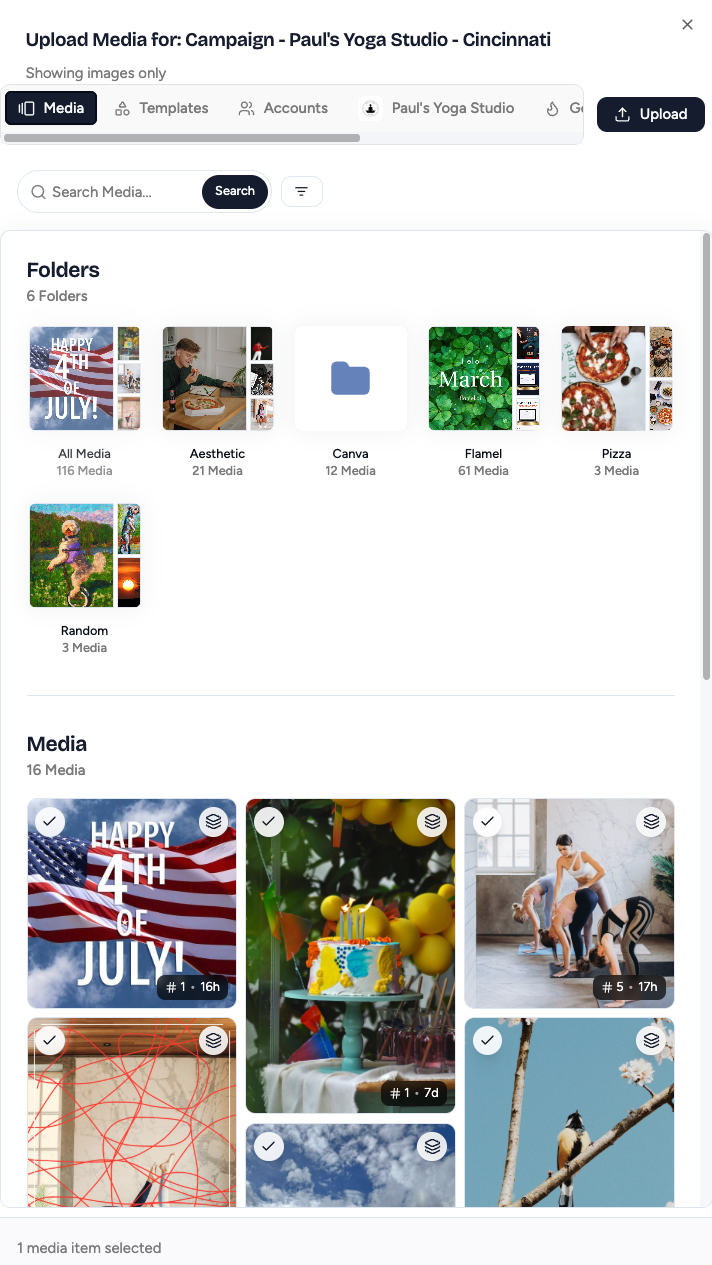
Select Your Image or Videos.
To replace the Hub media with your own, click Swap, then pick from your media sources or upload new media.
Accepted formats: JPG, PNG, GIF, WebP (images) and MP4, MOV (videos). Images can be up to 30 MB and videos up to 4 GB.
See File size and format limits for the full upload and per-platform limits. Upload at least one file per ad.
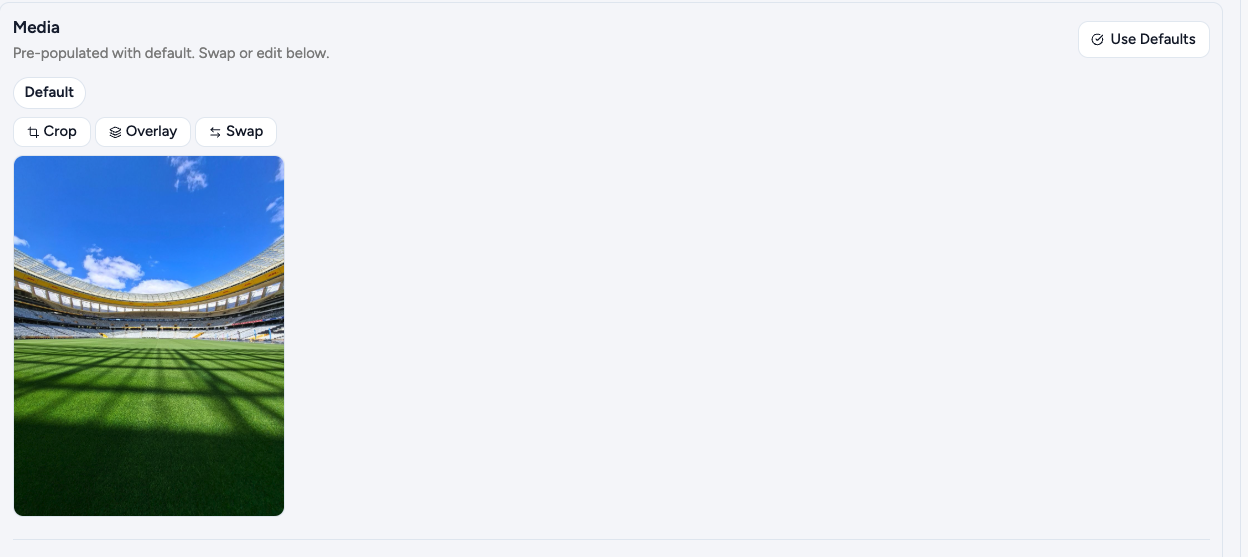
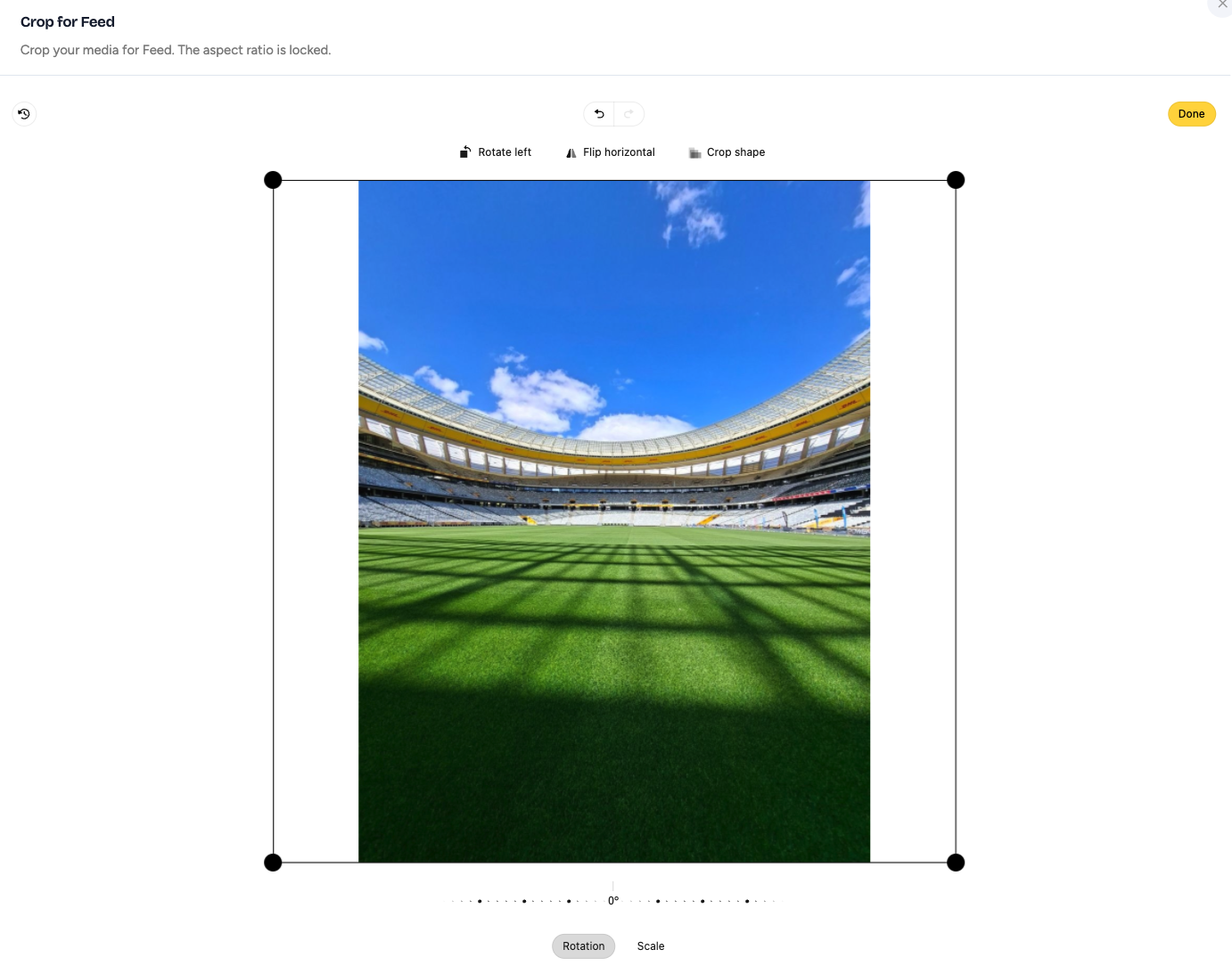
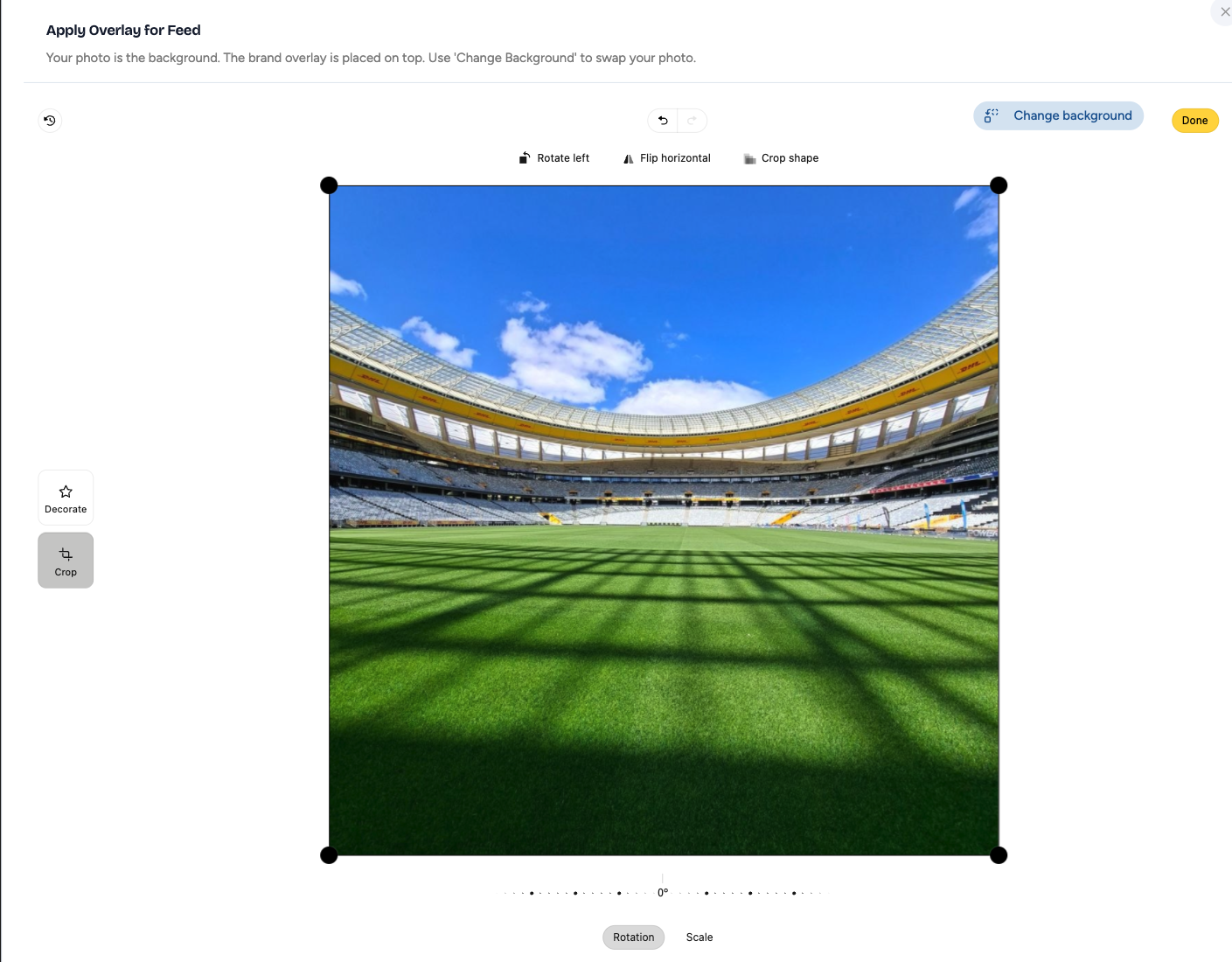
Crop / Overlay / Swap Your Media or Placement Crops.
After you upload media, choose Crop, Overlay, or Swap.
- Crop - allows you to re-frame the dimensions of the media.
- Overlay - allows you to overlay graphics on top of the media.
- Swap - allows you to change media for the ad.
You can do each of these per placement. Meta shows ads in many formats, so crop each placement to make sure the ad displays correctly.
Trim or Mute Videos
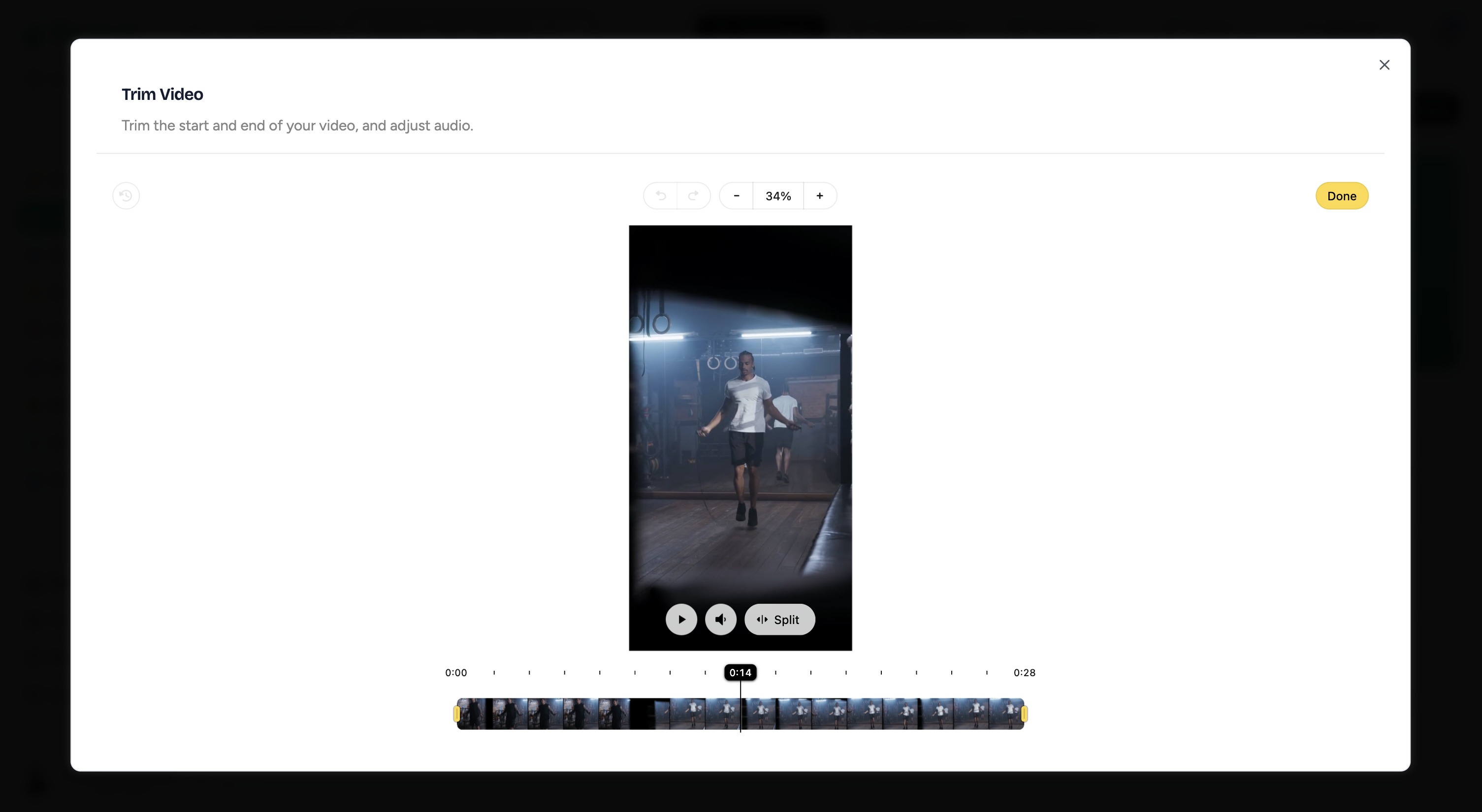
Click the trim icon on any uploaded video. Drag the in/out handles to set your clip length, then click Done.
To mute a video: open the Trim editor, toggle the sound icon off, then click Done to process.
Submit Your Creative for Review
Once all ad slots are filled, continue through the checklist and click Opt In. If the playbook requires Hub approval, your complete opt-in goes to the configured Hub reviewers. They review the creative alongside your budget, schedule, answers, and any required launch confirmation. Otherwise, the ad playbook deploys.
Hub Review
If your Hub requests changes, you will get an email with feedback. Click Update and Resubmit in My Playbooks to replace your media and re-send for approval.