Command Center
Cross-workspace view of every campaign with bulk pause, budget, and schedule controls.
For Hub admins
Command Center is the network-wide view across every workspace. Workspace owners see only their own campaigns, not the cross-workspace roll-up.
Open Command Center
Go to the Command Center
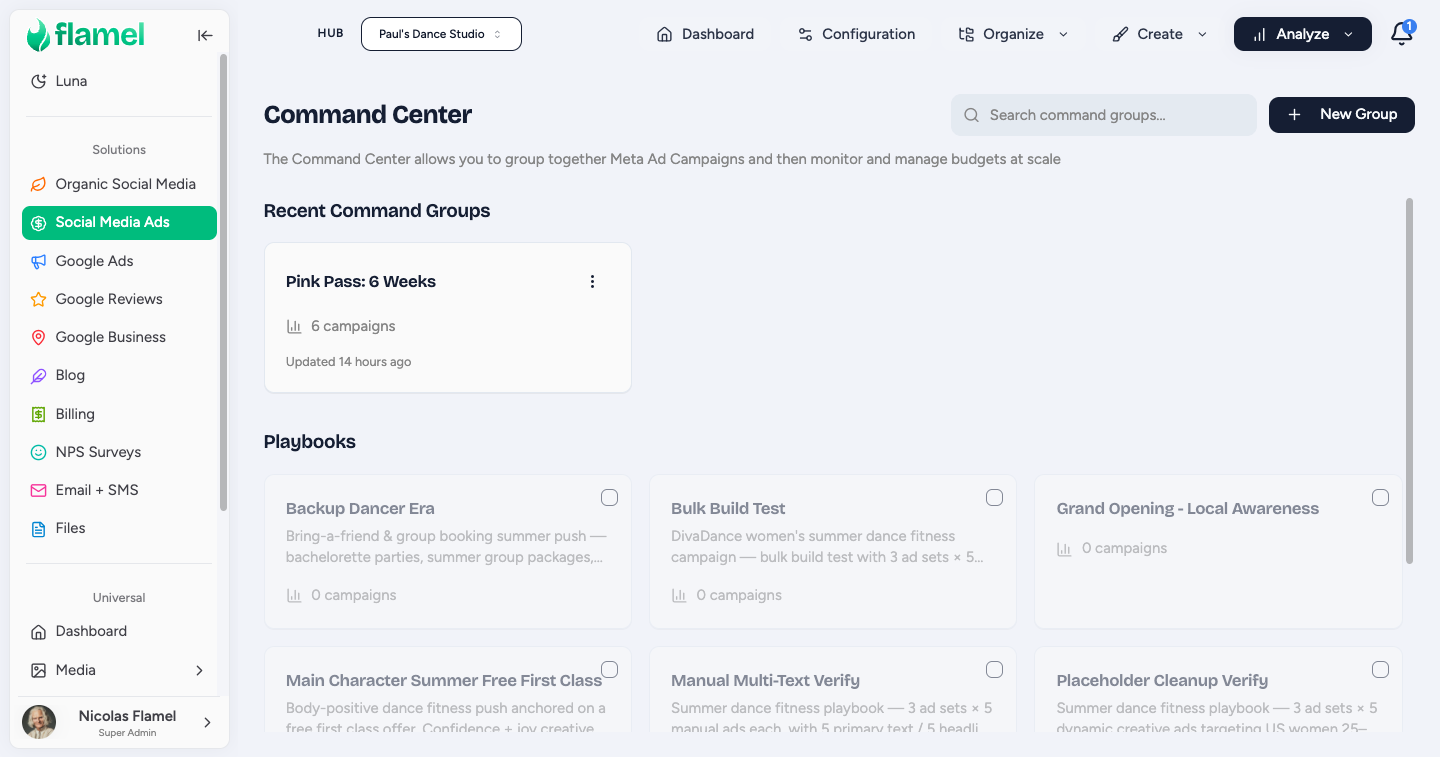
From the main navigation, open Paid Social Ads, choose Analyze, then click Command Center. This loads every campaign across all of your workspaces in one table.
Or open it scoped to one playbook
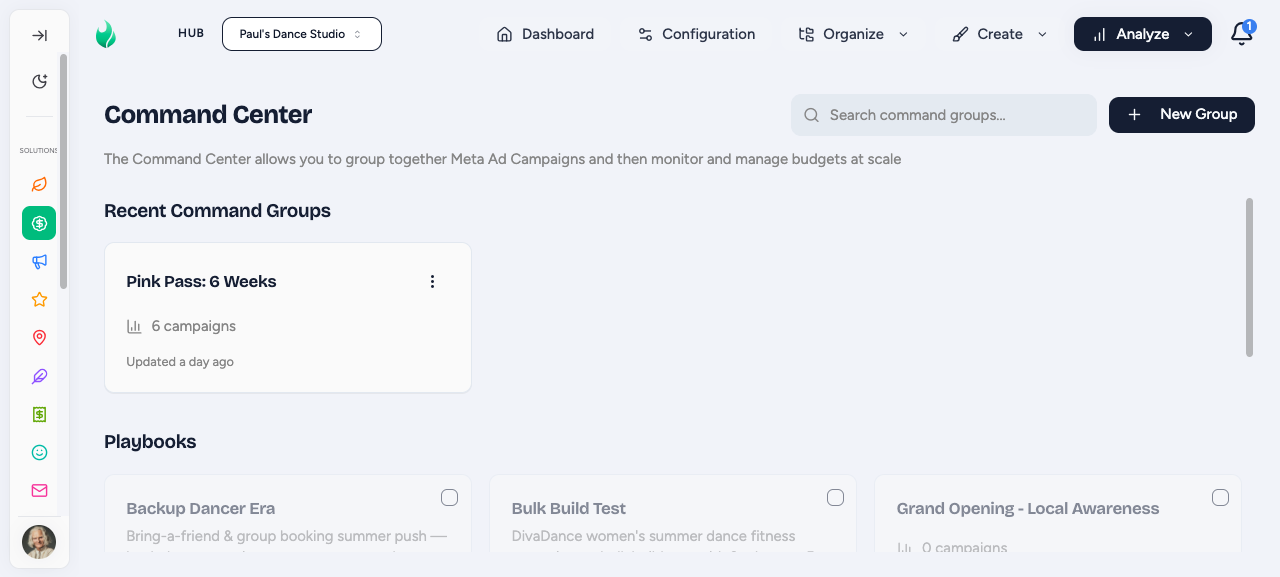
From any playbook detail page, click Command Center. The table opens pre-filtered to just that playbook's campaigns, which is the fastest way to focus on a single promotion.
Update Start/End Dates
Select the campaigns to change
In the Command Center table, check the campaigns whose schedule you want to update. You can select campaigns across multiple workspaces at once.
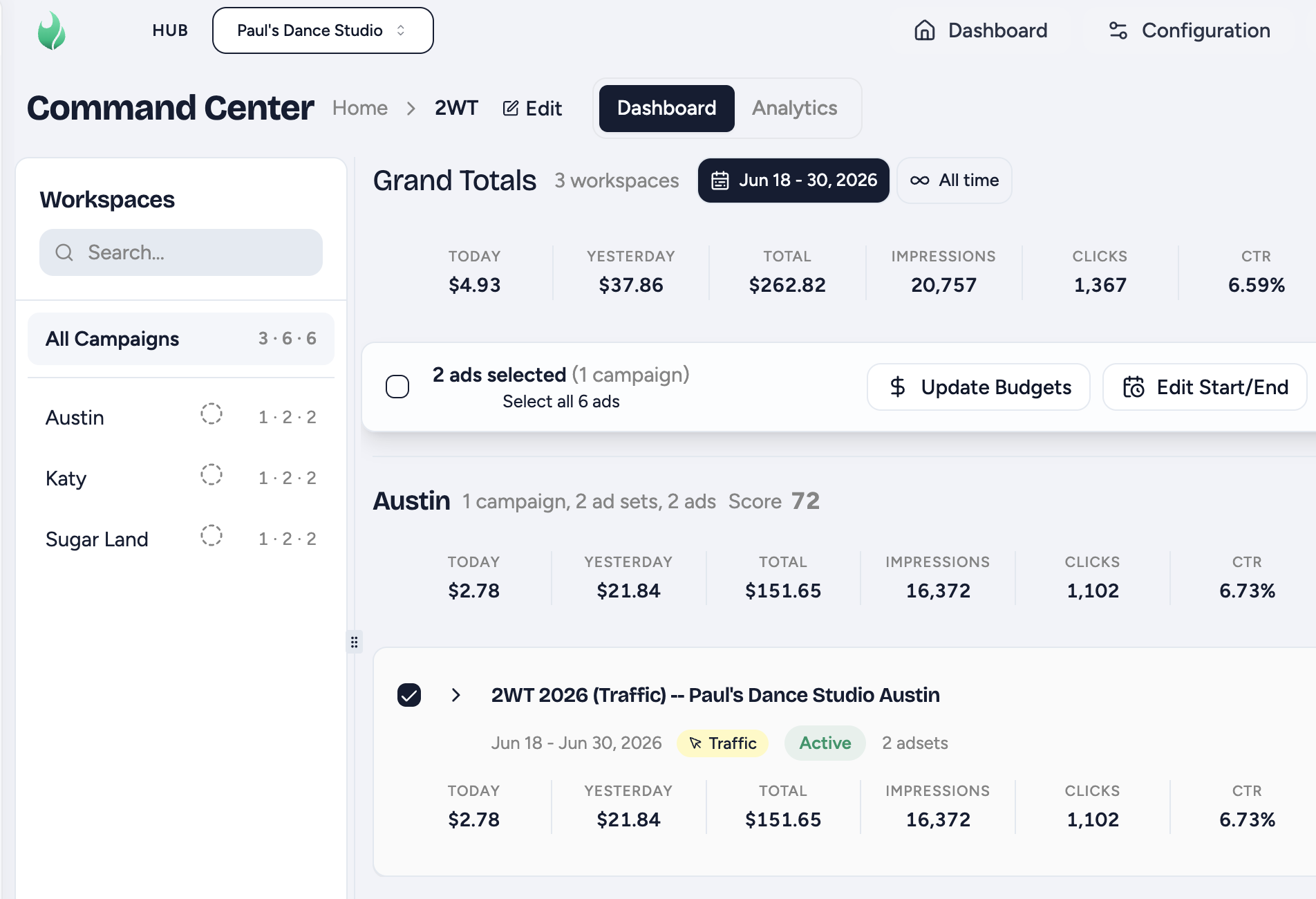
Choose Edit Start/End
With your campaigns selected, click the bulk Edit Start/End action.
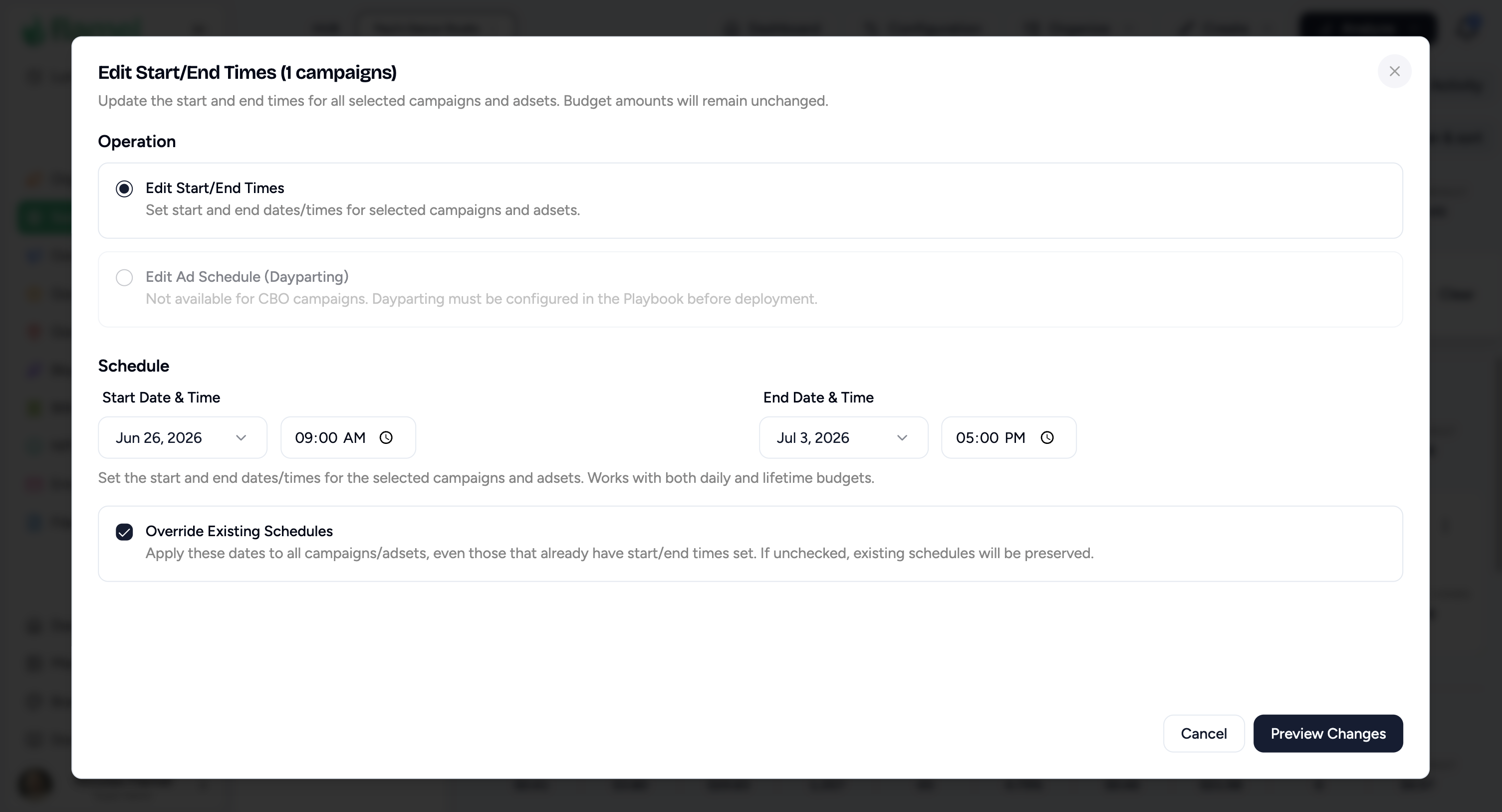
Set the new end date
Pick the new end date and confirm. The schedule change applies to every selected ad set immediately.
Shift Budgets in Bulk
Select the campaigns
Check the campaigns you want to re-budget in the Command Center table.
Choose Adjust Budgets
Click the bulk Adjust Budgets action.
Apply a change
You have three options when adjusting budgets:
- Adjust All Budgets by Percentage
- Adjust by Fixed Dollar Amount
- Set Specific Budget
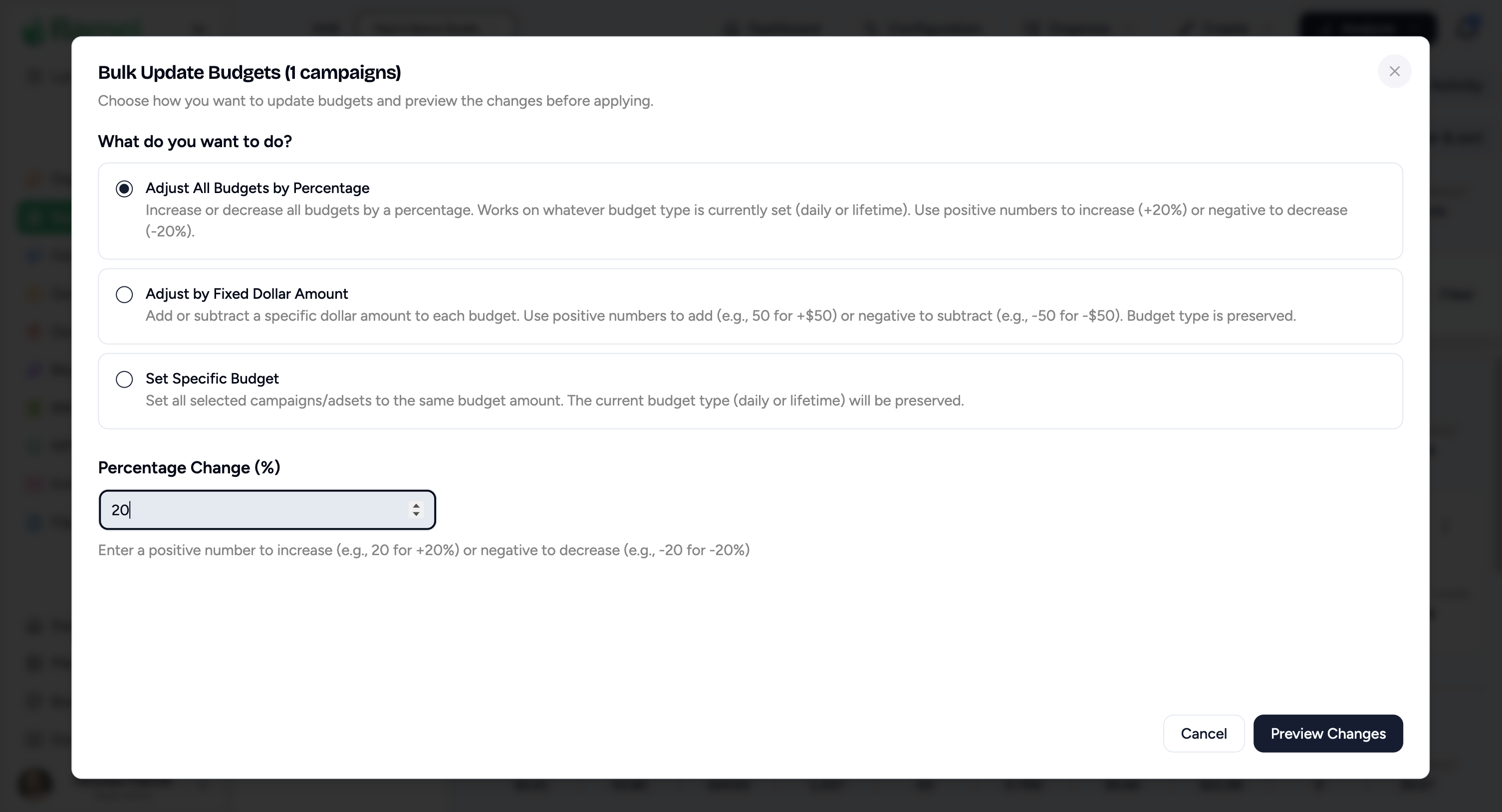
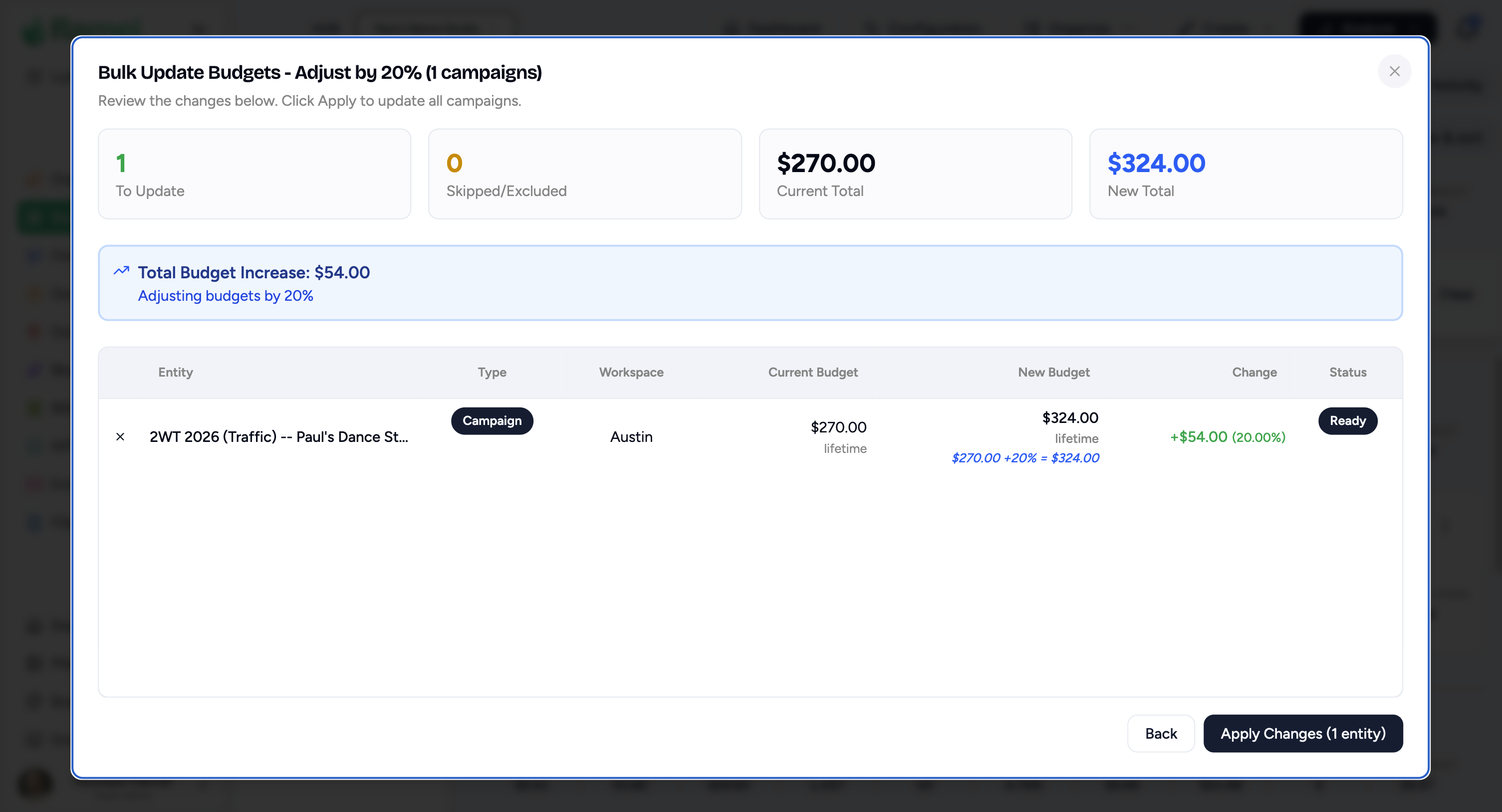
For example, to increase budgets by 20%, click Preview Changes and review each Campaign or Ad Set. Remove any incorrect row with X, then click Apply Changes.
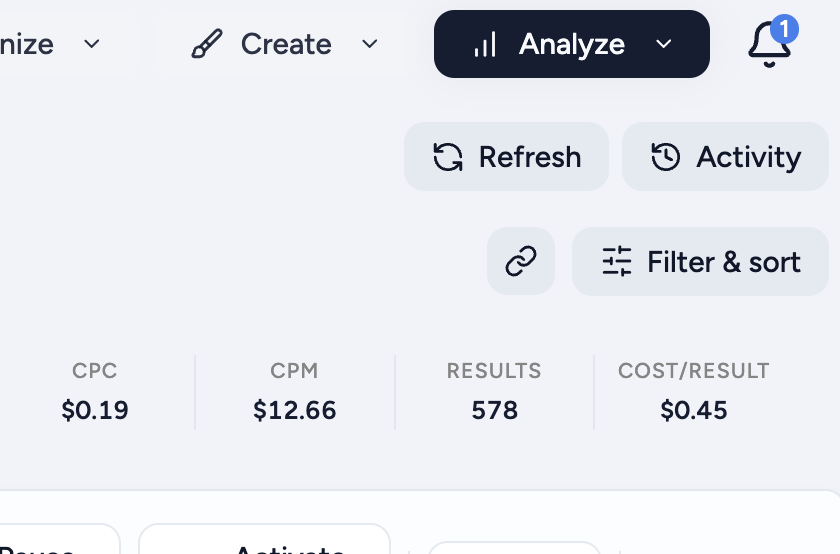
Click Activity at the top right to see each action's status, what changed, and who changed it.
Pause or Activate Campaigns
Select the campaigns
Check the campaigns you want to pause or restart.
Click Pause or Activate
Use the bulk Pause All or Activate All action. It halts or resumes a promotion across the network in one click.
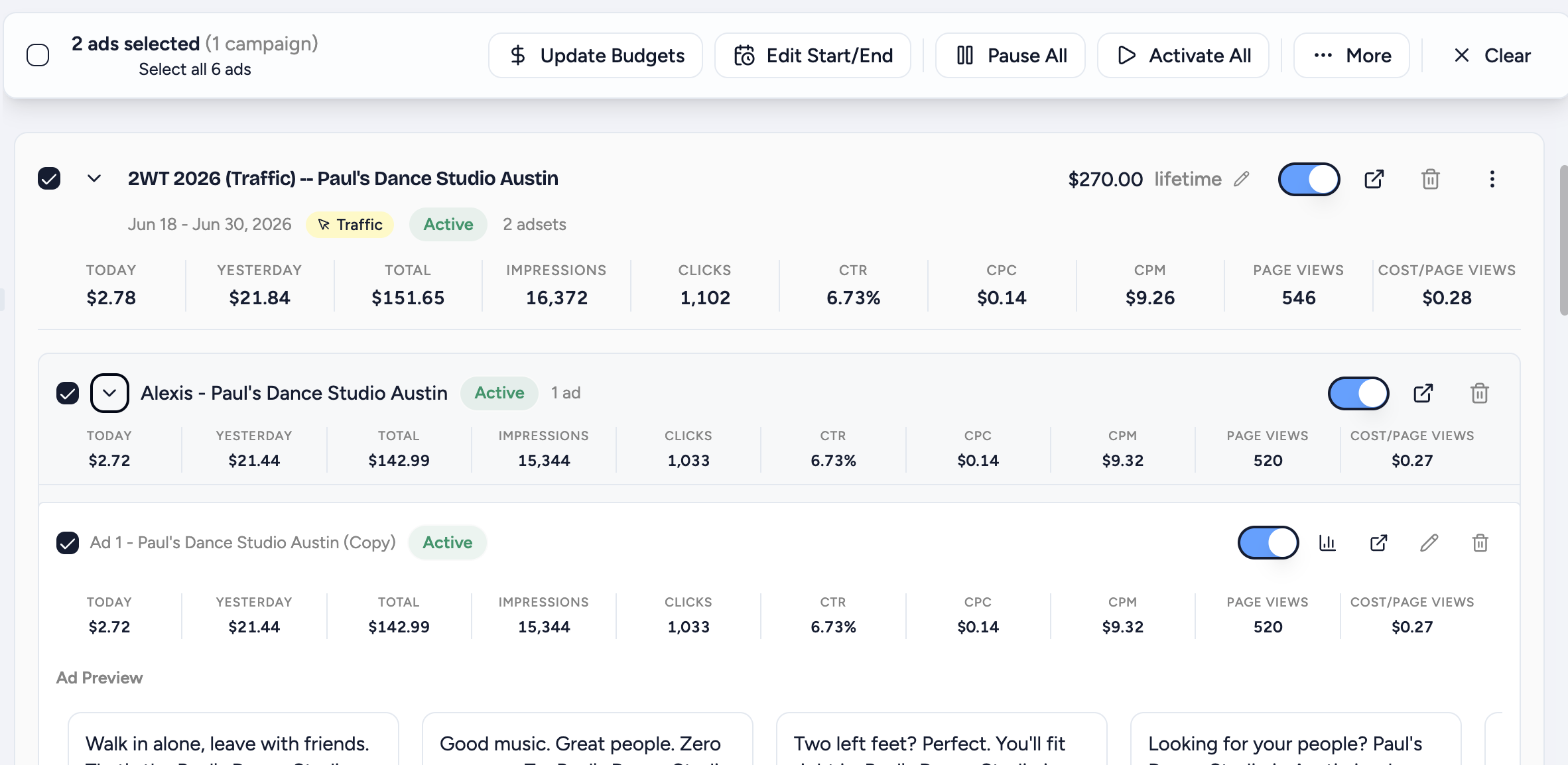
For finer control, use the Campaign, Ad Set, or Ad switch, for example to turn off an underperforming ad while stronger ads keep running.