Workspace Variables
Manage address, hours, contact info, and custom variables for every workspace in your Hub.
Before You Start
The Workspace Variables table is a Hub-level view where each row is a workspace. Workspaces can view their own details, but only Hub admins can edit the table.
Workspace Variables is the record of each workspace's address, phone, hours, and custom fields. Posts, ads, and broadcasts use these values to personalize content, so keep them current.
Three Views: Variables, Custom, and Map
Use the buttons at the top right to switch between three views.
| View | What it shows | Use it to |
|---|---|---|
| Variables | One row per workspace with address, contact details, hours, and a Locations column. | Edit workspace details and open each workspace's studios. |
| Custom | Your brand's custom variables as columns, one value per workspace. | Fill in per-workspace values such as a franchisee ID or local offer. |
| Map | Every workspace's studios, radii, ZIP code territories, and excluded areas on one map, with estimated reach. | Spot gaps and overlaps between neighboring workspaces. |
Locations and Google Sheet sync
Click Show in the Locations column to open a workspace's studios. Each studio card shows its address, radius, and whether it is On for ad targeting, and ads that use workspace Locations follow these studios automatically.
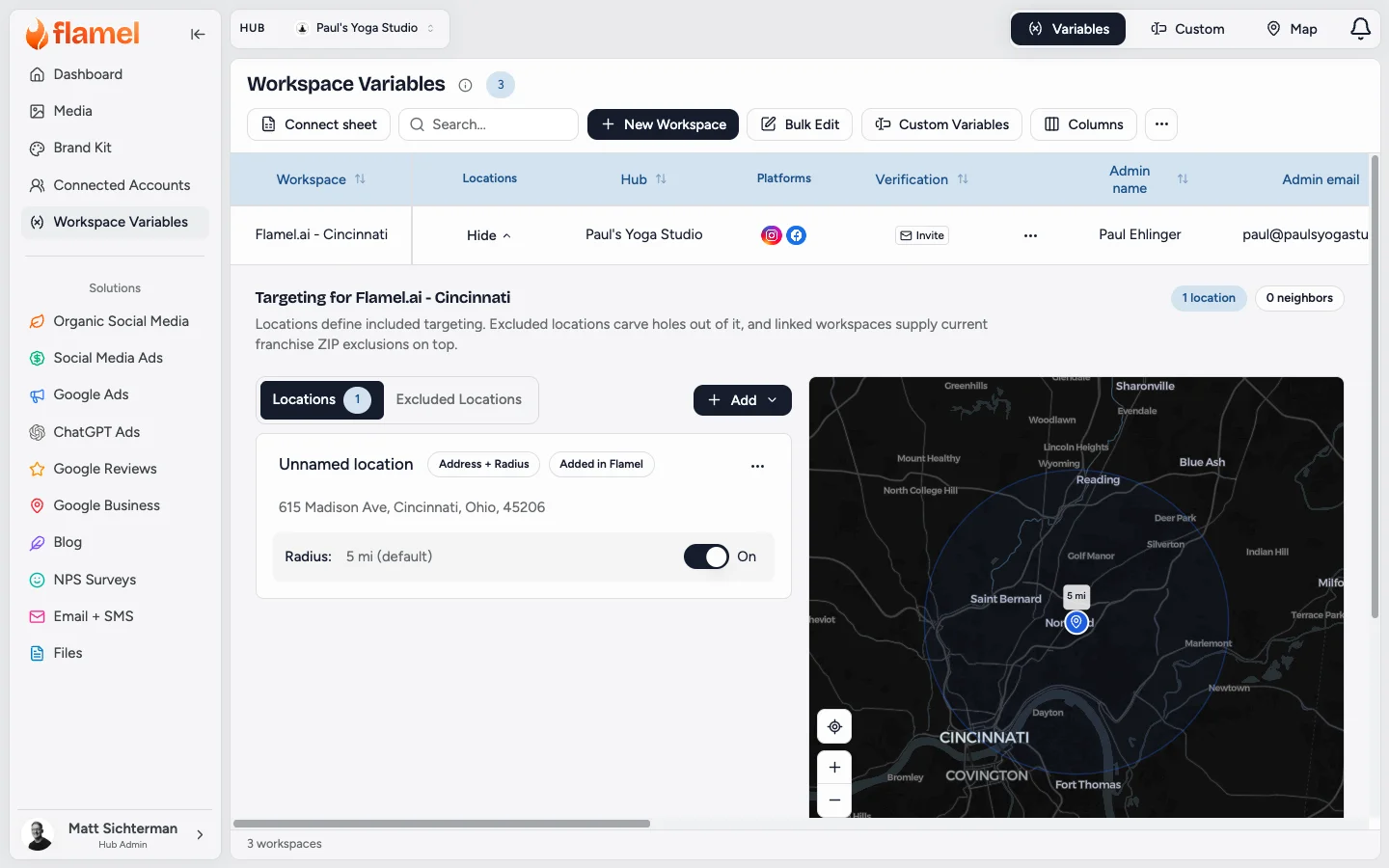
To sync Locations from a Google Sheet, share the sheet with Flamel as a Viewer. Flamel reads it daily to add and update studios and keeps the changes you make in Flamel. See Locations for Ad Targeting for setup and review.
Custom
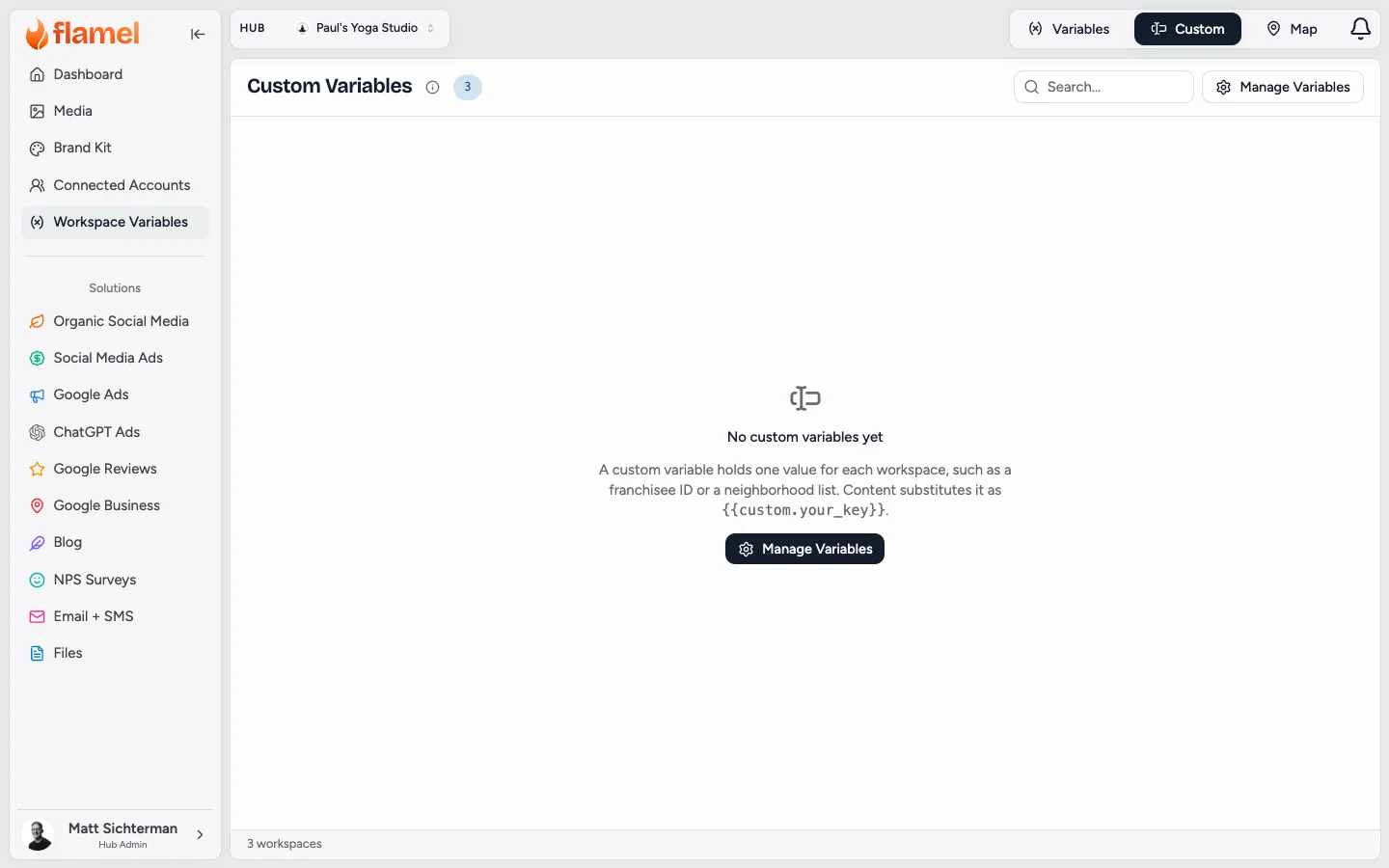
Click Manage Variables to add a custom variable, then fill in a value for each workspace. See Custom variables for naming and how content uses them.
Map
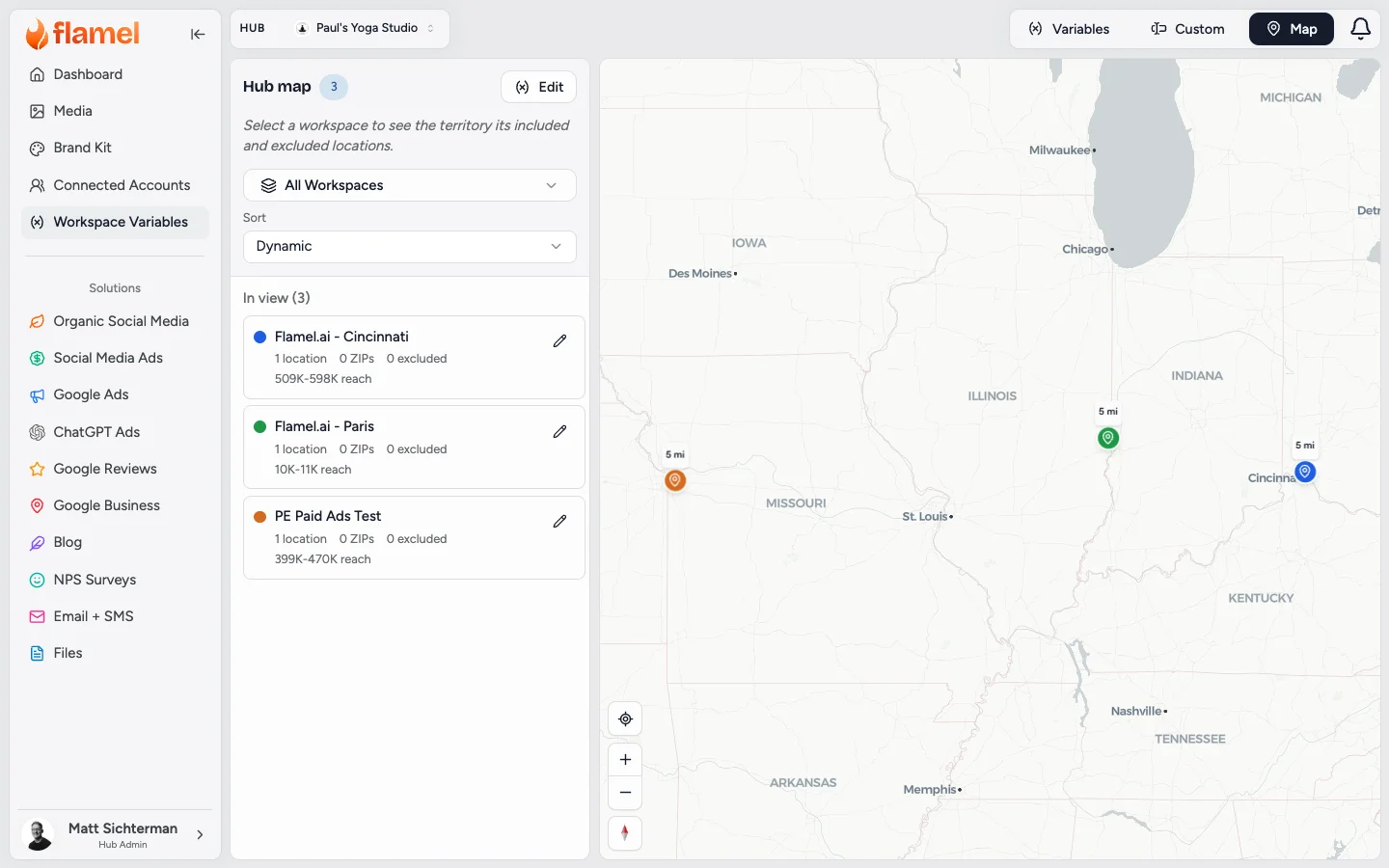
The list beside the map shows each workspace's location count, ZIP codes, excluded areas, and estimated reach. Pick a workspace to see only its territory, or click the pencil to edit its Locations. See Map view for how to read the map and what to look for.
Edit a Workspace
Open Workspace Variables
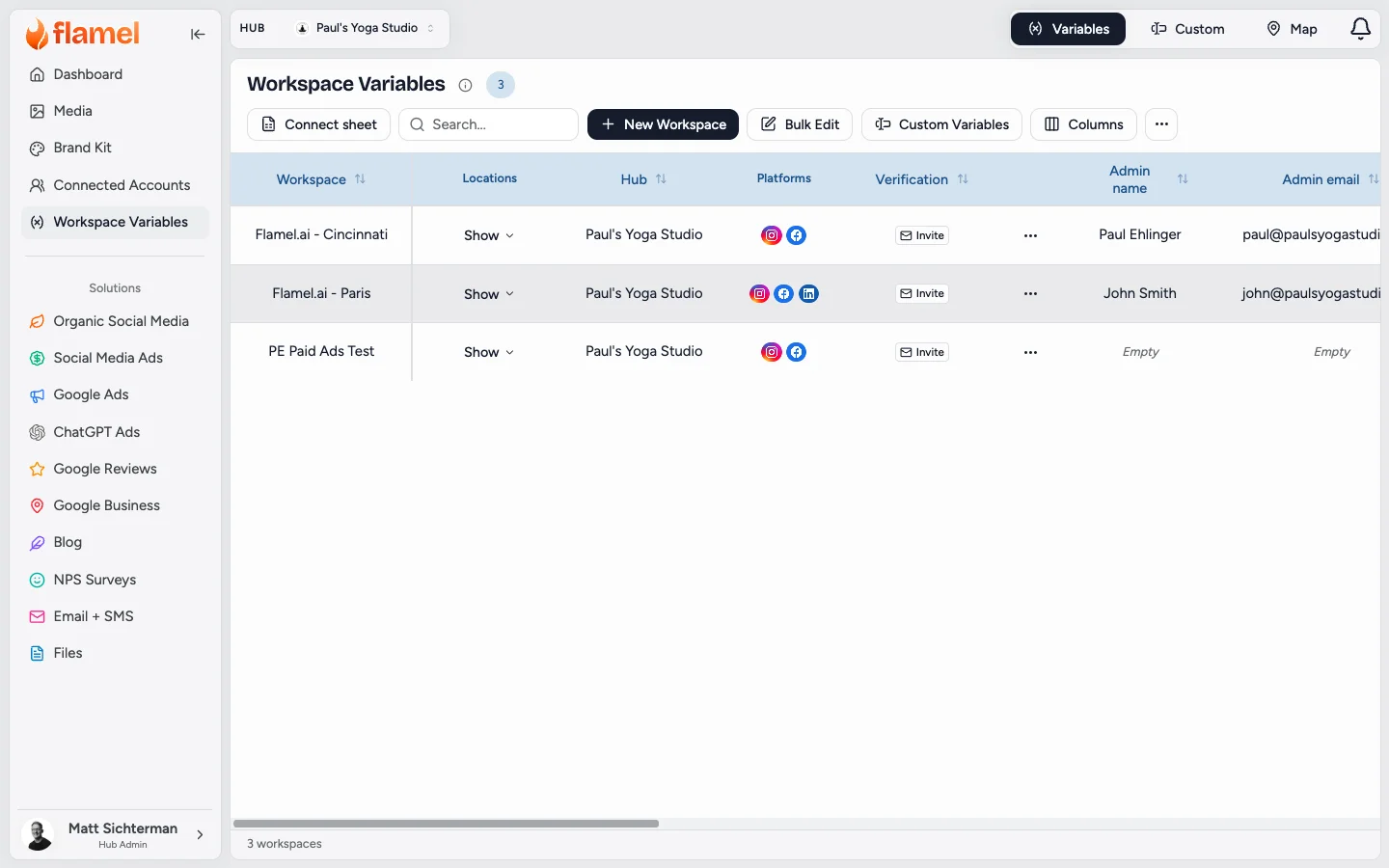
Open Workspace Variables from the sidebar.
Find the Workspace
Use the search bar to filter by name, city, or any field value.
Edit Inline or Open Detail
Click any cell to edit inline, or click the row to open the full detail and edit all fields at once.
Save
Inline edits save automatically on blur. In the detail view, click Save to apply all changes.
Add a Workspace
Click New Workspace
Click New Workspace at the top of the table. Adding workspaces is subject to your hub's workspace limit.
Fill in the Required Fields
Name is required. Fill in as much address and contact information as possible so variables resolve accurately in posts and ads.
Save
Click Save to add the row. The new workspace appears in the table and is available for variable resolution immediately.
Adding 5 or More Workspaces
Use the bulk upload flow instead of adding them one by one. See Bulk upload for the full workflow.
Managing Workspace Membership
To control which workspaces are bound to your hub, use the Hub, then Workspaces tab. Every bound workspace shows up here automatically, ready for you to fill in its variables.
Custom Variables
Custom variables add brand-specific fields such as a store manager name, local offer, or regional specialty. Each one appears as a column you edit per workspace row, and you reference it in posts and ads with {{custom.field_key}}.
See Custom variables for how to create and manage these fields.
Reference
What the Table Contains
Each row represents one workspace and holds:
| Field | What it Stores |
|---|---|
| Name | The workspace's display name (for example, Brand - Chicago) |
| Address | Physical street address |
| City, State, Zip | Address components |
| Phone | Public-facing phone number |
| Workspace contact email | |
| Website URL | The workspace's own website or booking page. Ads use it when no playbook or Ad Configuration URL is set; see Choose Where Ads Send People. |
| Hours | Business hours by day |
| Time zone | IANA time zone (drives post scheduling and analytics) |
| Custom variables | Any additional fields you have defined |
Standard Variables
These resolve from the table in every post and ad:
| Variable | Source Field |
|---|---|
{{location_name}} | Name |
{{address}} | Address |
{{city}} | City |
{{state}} | State |
{{zip}} | Zip |
{{phone_number}} | Phone |
{{contact_email}} | |
{{website_url}} | Website URL |
{{custom.field_key}} | Any custom variable |
Related Articles
Check every workspace's coverage and overlaps on one map.
Target every studio from one list, synced from your Google Sheet.
Create and manage per-workspace custom fields.
Import or update many workspaces at once via CSV.
The full onboarding workflow for a new workspace.
Send one post to all workspaces using variables to personalize per workspace.