Map View
See every workspace's radius and ZIP code targeting on one map, edit it from the hub, and apply it to Ad Configurations.
For Hub Admins
This page covers the hub view. Workspace users see their own targeting on their Dashboard. See Your Locations.
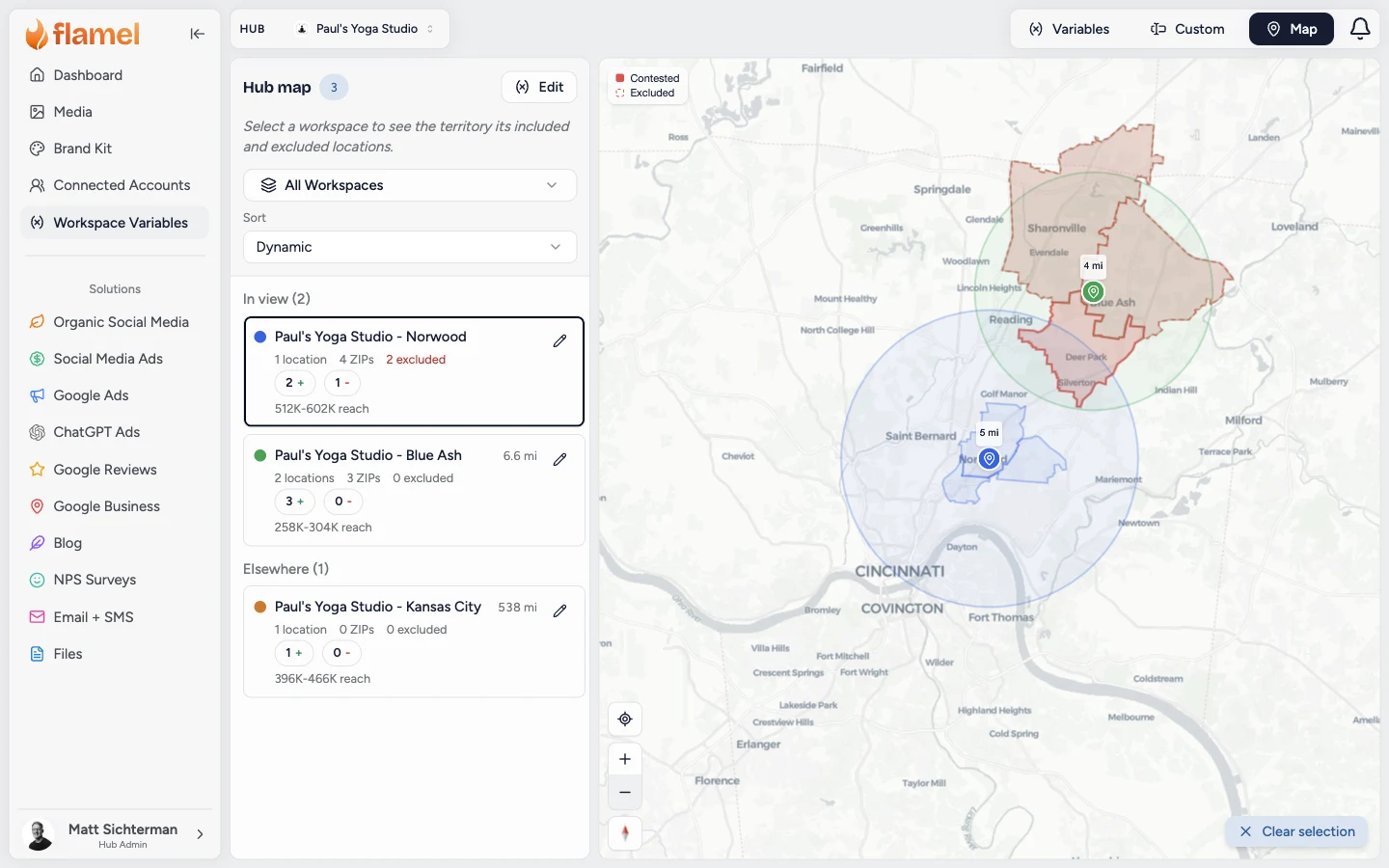
The Map view shows where every workspace's ads can reach. Open Workspace Variables, then click Map at the top right.
How Targeting Works
Each workspace's targeting is a list of areas. An area either adds people to the workspace's ads or carves people out, and only areas switched On are used.
| Area | How it works | Rules |
|---|---|---|
| Address + Radius | A circle around a street address. The address sets the center, so a new address moves the circle. | 1 to 50 miles (or 1 to 80 km). New studios start at 5 miles or a Recommended radius. A radius you type yourself is never replaced. |
| ZIP Codes | A territory made of whole ZIP codes. | US 5 digit codes, up to 500 per paste. Codes Meta does not recognize turn red and are left out of targeting. New territories start Off. |
| Excluded Location | A radius or ZIP set that ads skip, such as a neighbor's territory. | Google Ads cannot exclude a radius, so use an excluded ZIP set when the workspace runs Google Ads. |
Read the Map
| On the map | What it means |
|---|---|
| Pin with a mile label | A studio and its radius. |
| Colored ZIP outline | A ZIP code territory. Each workspace has its own color, and neighbors never share one. |
| Solid red | Contested: two workspaces claim the same ZIP code and compete for the same people. |
| Dashed red | Excluded: the selected workspace's ads skip this area. |
Click any red area to see who claims it. Choose a workspace from All Workspaces, or click its row, to zoom to it and show its exclusions.
Edit a Workspace's Targeting
Open the workspace
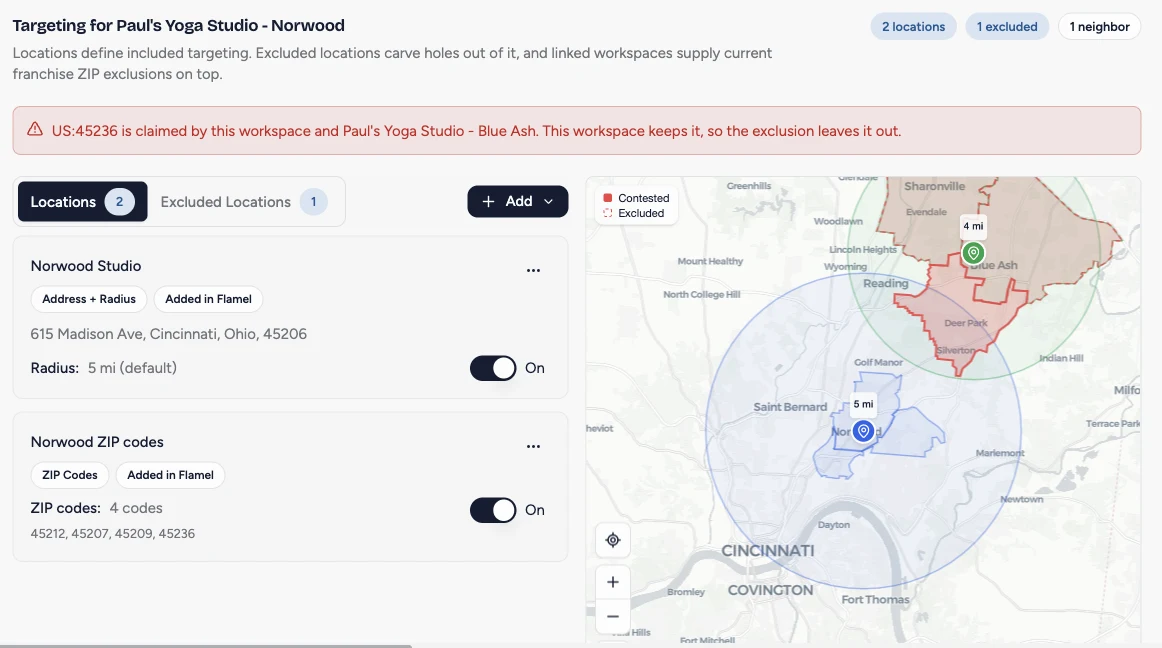
Click the pencil on a workspace in the map list. You can click Show in the Locations column of the Variables view.
Add a radius or ZIP codes
Click Add, then choose Address + Radius or ZIP Codes. For a radius, pick the address from the Google suggestions and set the miles. For ZIP codes, name the territory, click Paste ZIP codes, paste a list separated by commas, spaces, or new lines, and save. Turn the new territory On when it should deliver.
Exclude a neighbor
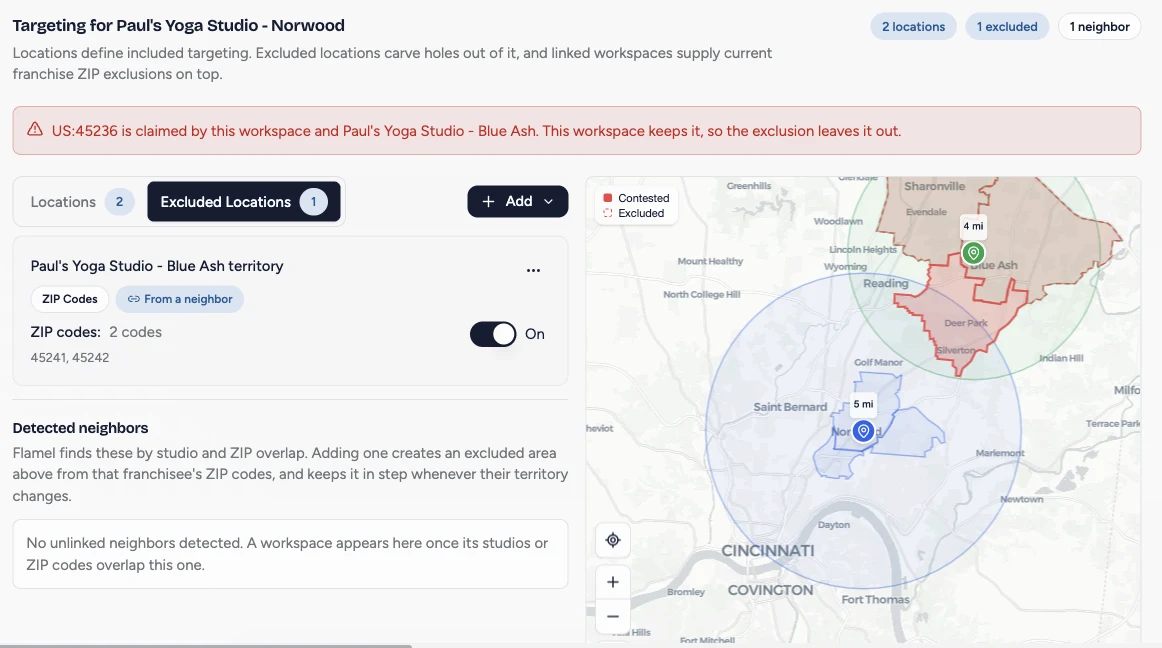
Open Excluded Locations. Under detected neighbors, click Add exclusion to skip that workspace's ZIP codes. The exclusion updates on its own when the neighbor's territory changes. A ZIP code both workspaces claim stays with this workspace and shows as contested.
Check the map
Return to Map. Settle each solid red ZIP code by keeping it in only one workspace's territory, and look for markets no workspace reaches.
Turn off instead of removing
Switching an area Off stops delivery but keeps the workspace's claim on it. Remove gives up the claim, and a neighbor's ads can start delivering there.
Apply Targeting to Ad Configurations
Targeting only reaches ads that use it. Turn it on per audience type, then send it to ads that are already running.
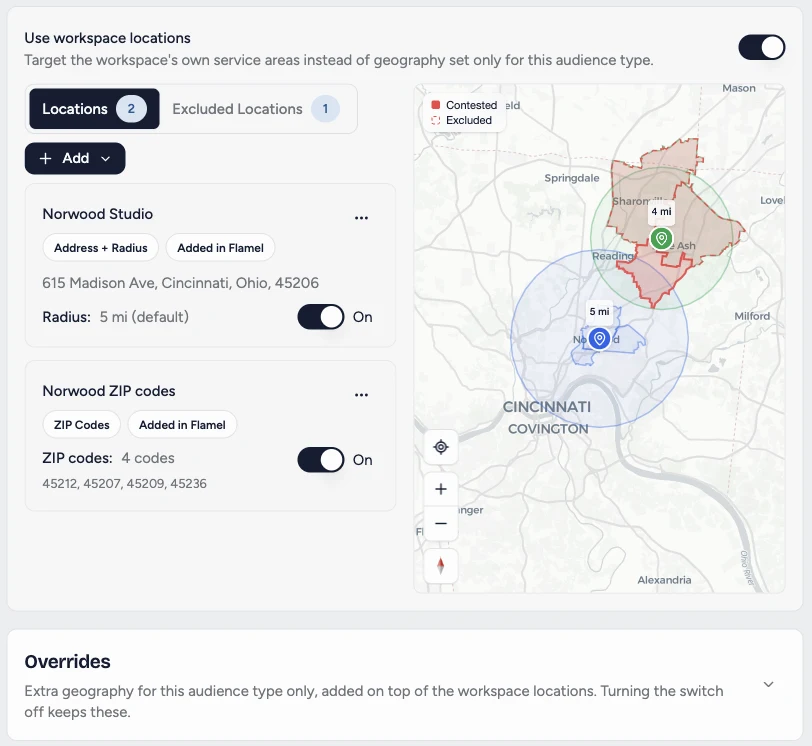
Turn on Use workspace locations
Open Social Media Ads, then Configuration. Pick a workspace and an audience type, then switch on Use workspace locations. The workspace's targeting appears in place of Custom Locations. Use Overrides for extra areas that apply to this audience type only.
Apply it to many workspaces at once
Click Manage, then Update targeting across workspaces. Choose the workspaces and audience types, select Use workspace locations, click Preview configuration changes, and then Apply. New launches use the new targeting right away.
Update ads that are already running
In the same dialog, click Update live ads, then Review live ads to compare current and new locations. Click Approve and update to send the change. Flamel updates one ad set at a time, confirms each with Meta, and never changes budgets, schedules, or status.
Running ads keep their old geography until you approve this step. For a single campaign, use Send targeting update in the opt-in's actions menu. Google Ads campaigns pick up new targeting when they are next deployed.