Workspace Media
Copy approved media from your Hub to workspace media libraries, and manage media across your entire network from one place.
Workspace Media lets Hub admins see media across every workspace and send approved images and videos to specific locations. Use it for seasonal campaigns, product launches, brand assets, and other content several locations share.
For Hub Admins
Workspace Media is a Hub-only feature. It must be enabled from the Hub before it can be used.
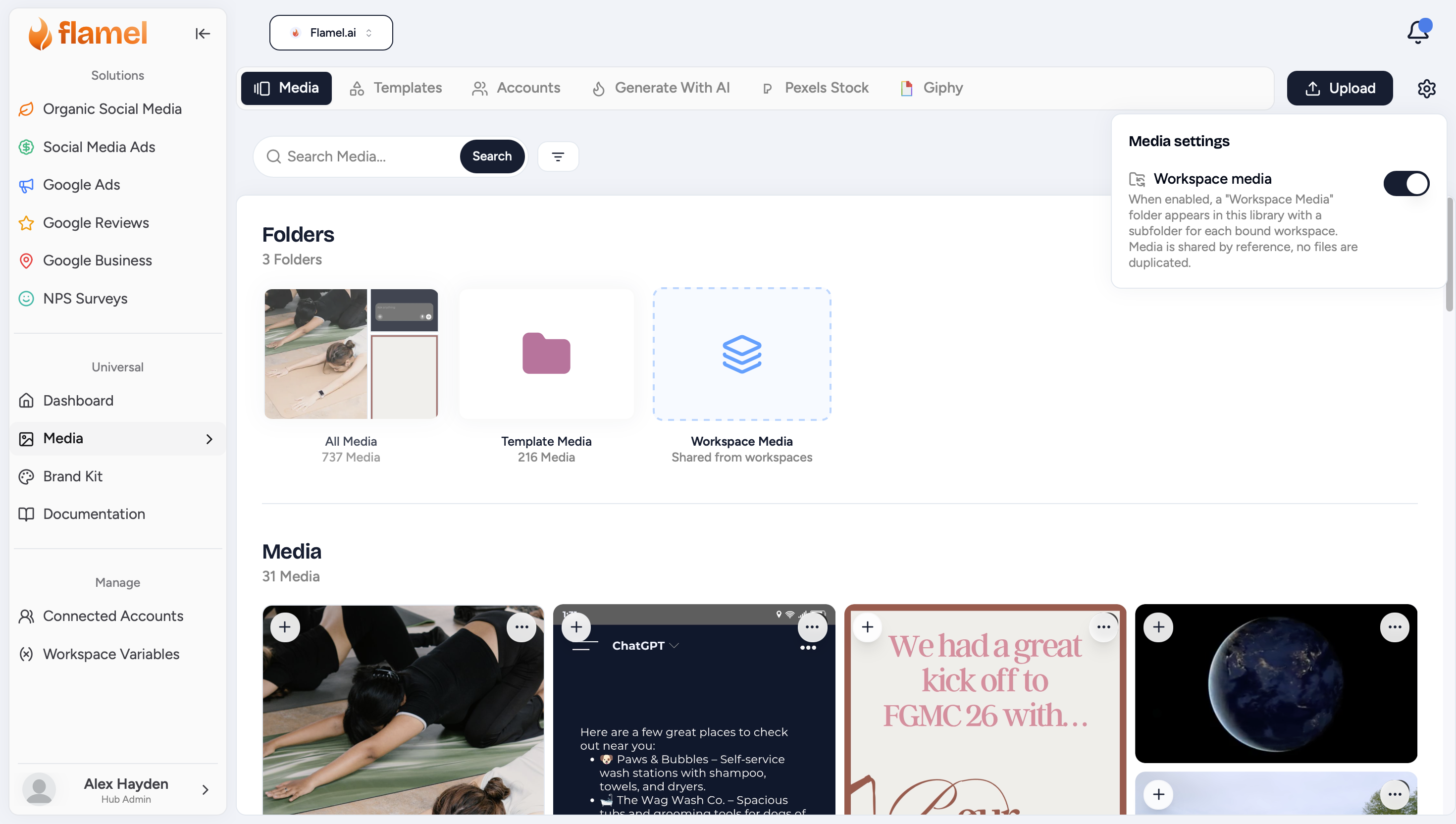
Turn On Workspace Media
Before you can manage media across your network, you'll need to turn on Workspace Media.
Open the Media Library
From your Hub, go to Organize > Media.
Enable Workspace Media
Click the gear Settings icon in the upper-right corner of the Media Library.
Turn Workspace Media On
Once enabled, you'll be able to view media stored across all workspaces in your Hub.
Copy Media to Workspaces
Use this when you want multiple locations to have access to the same approved assets.
Find the Media
Locate the image or video you want to distribute.
Copy to Workspaces
Click the three dots menu on the media item and select Copy to Workspace.
Select Workspaces
Choose one or more workspaces that should receive the media.
Click Copy to add the media to each selected workspace's Media Library.
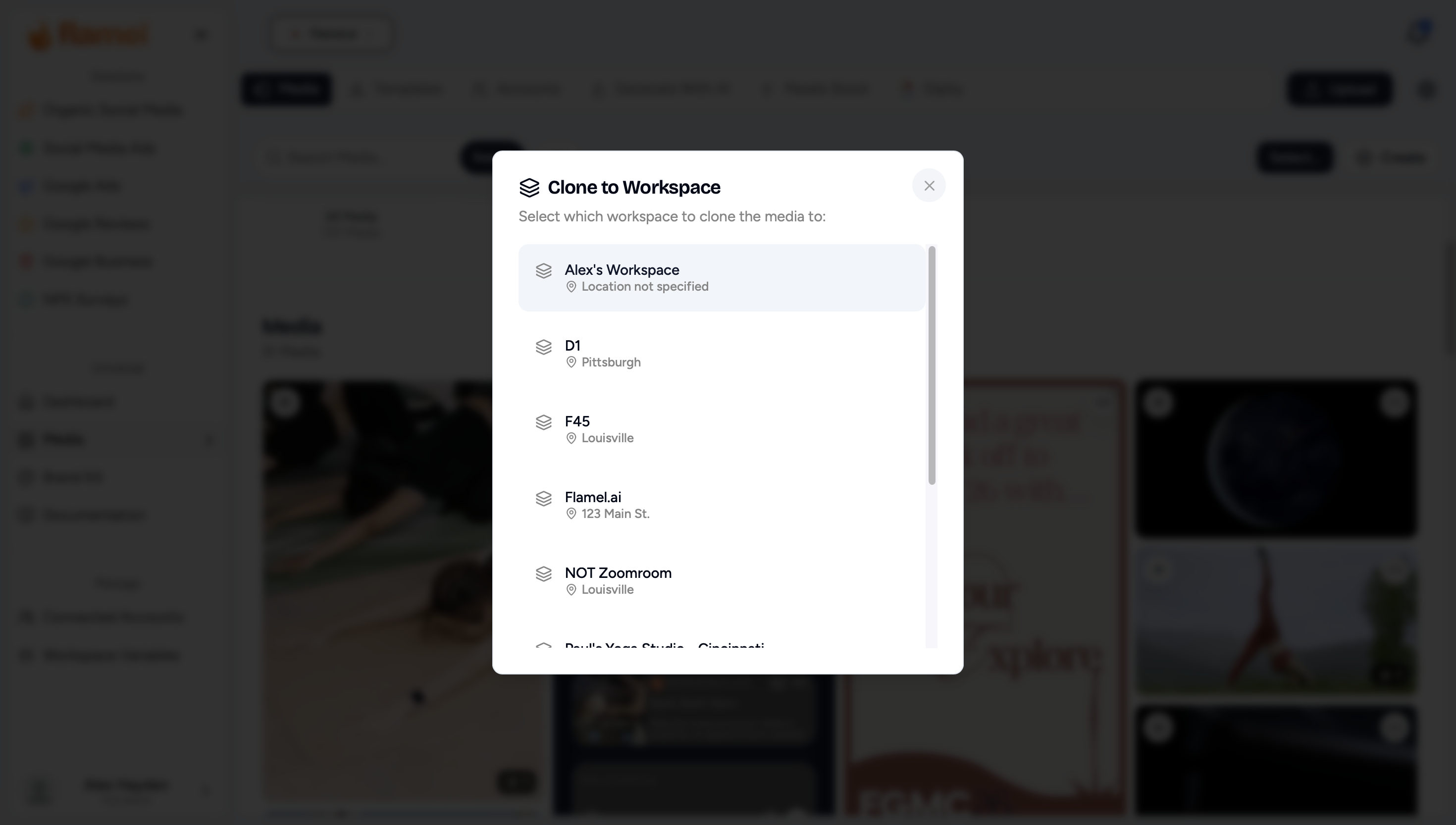
The copied media becomes available immediately for users in those workspaces to use when creating posts.
Viewing Workspace Media
With Workspace Media enabled, Hub admins can browse media across the entire network from a single Media Library.
This makes it easy to:
- Review media uploaded by individual locations.
- Find assets being used across the network.
- Reuse successful content.
- Manage campaign assets without switching between workspaces.
Best Practices
- Distribute approved campaign assets before launches so every location has the correct media.
- Use Workspace Media for logos, seasonal graphics, promotional images, and other reusable assets.
- Organize media with tags to make searching easier across your network.
- Remove outdated campaign assets when they are no longer needed to keep workspace libraries organized.