Opt-In Email Reminders
Receiving automatic opt-in reminders upon playbook availability.
Opt-in emails go to workspaces that can access a playbook but have not opted in yet. Flamel sends one automatically when a new playbook becomes available to them. A Hub admin can remind workspaces that still need to opt in by sending a reminder on demand or turning on an automatic schedule.
Manual reminder. From the playbook, a Hub Admin picks the pending workspaces (individually or in bulk) and sends a reminder immediately.
Automatic reminders. Turn on a repeating schedule and Flamel handles the reminders for you.
| Trigger | The automatic cadence is enabled for the playbook. |
| Frequency | Every day, every 3 days, every 7 days, every 14 days, or every 30 days. |
| When it starts | The first reminder is sent when the playbook activates, then it repeats on the chosen cadence. |
| Who gets it | Only workspaces in the audience that have not opted in yet, resolved fresh on every send. |
| Action | Open the opt-in link and complete the opt-in. |
| Stops when | The workspace opts in, the playbook is turned off, the opt-in window (the campaign start date) has passed, or no eligible workspaces remain. |
One email per person
Someone responsible for several locations that all still need to opt in gets a single reminder that lists each of their workspaces, not one email per workspace.
Set Up Automatic Reminders
You can turn on the automatic schedule in two places: while creating the playbook, or at any time on a playbook that is already live.
While Creating a Playbook
Open Notification Preferences
In the create-playbook flow, go to Notification Preferences and expand Advanced options.
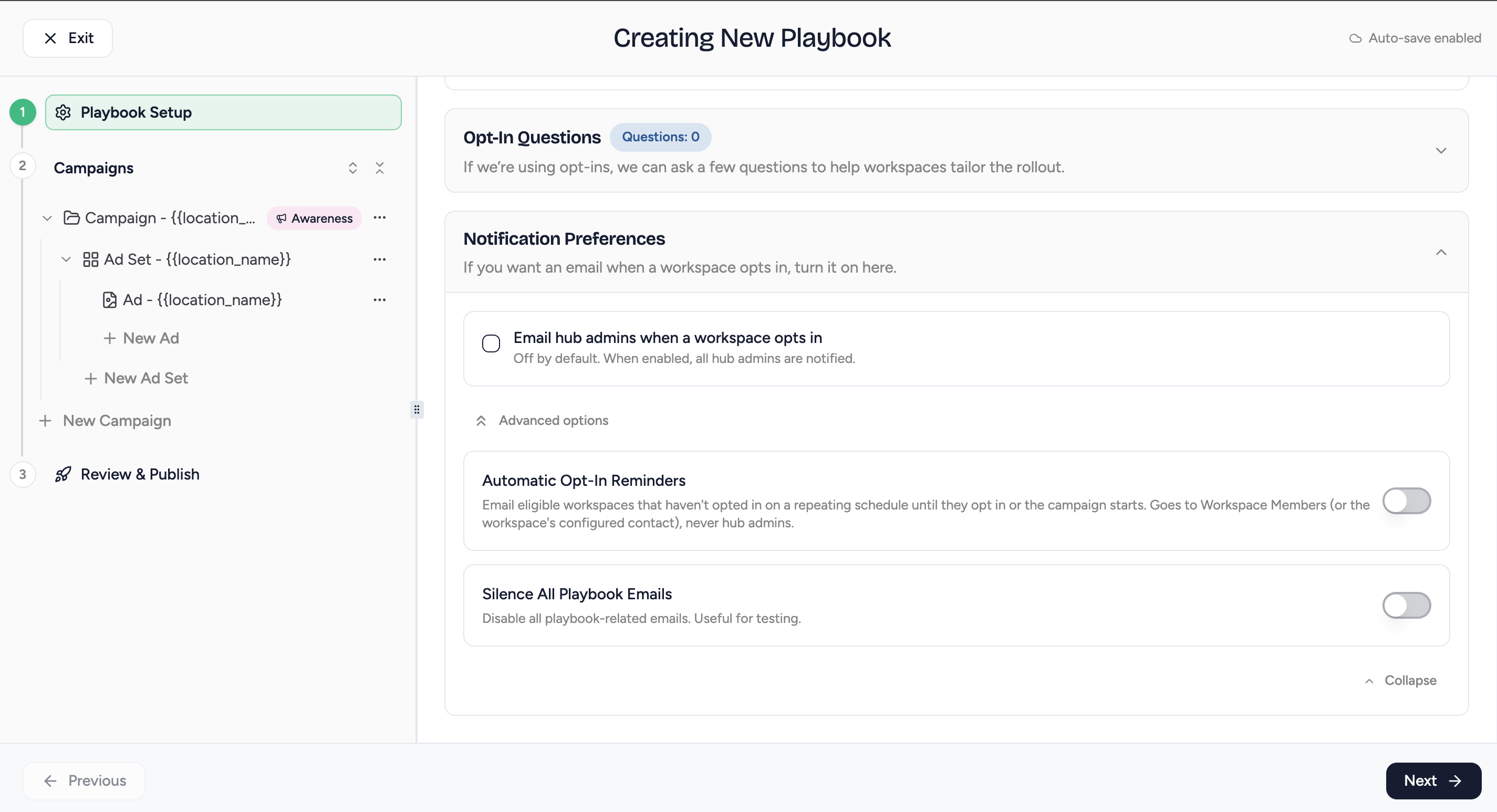
Turn On Automatic Opt-In Reminders
Toggle Automatic Opt-In Reminders on. The description confirms reminders go to Workspace Members or the workspace's configured contact, never Hub Admins.
Choose the Reminder Frequency
Pick how often reminders repeat: every day, every 3 days, every 7 days, every 14 days, or every 30 days.
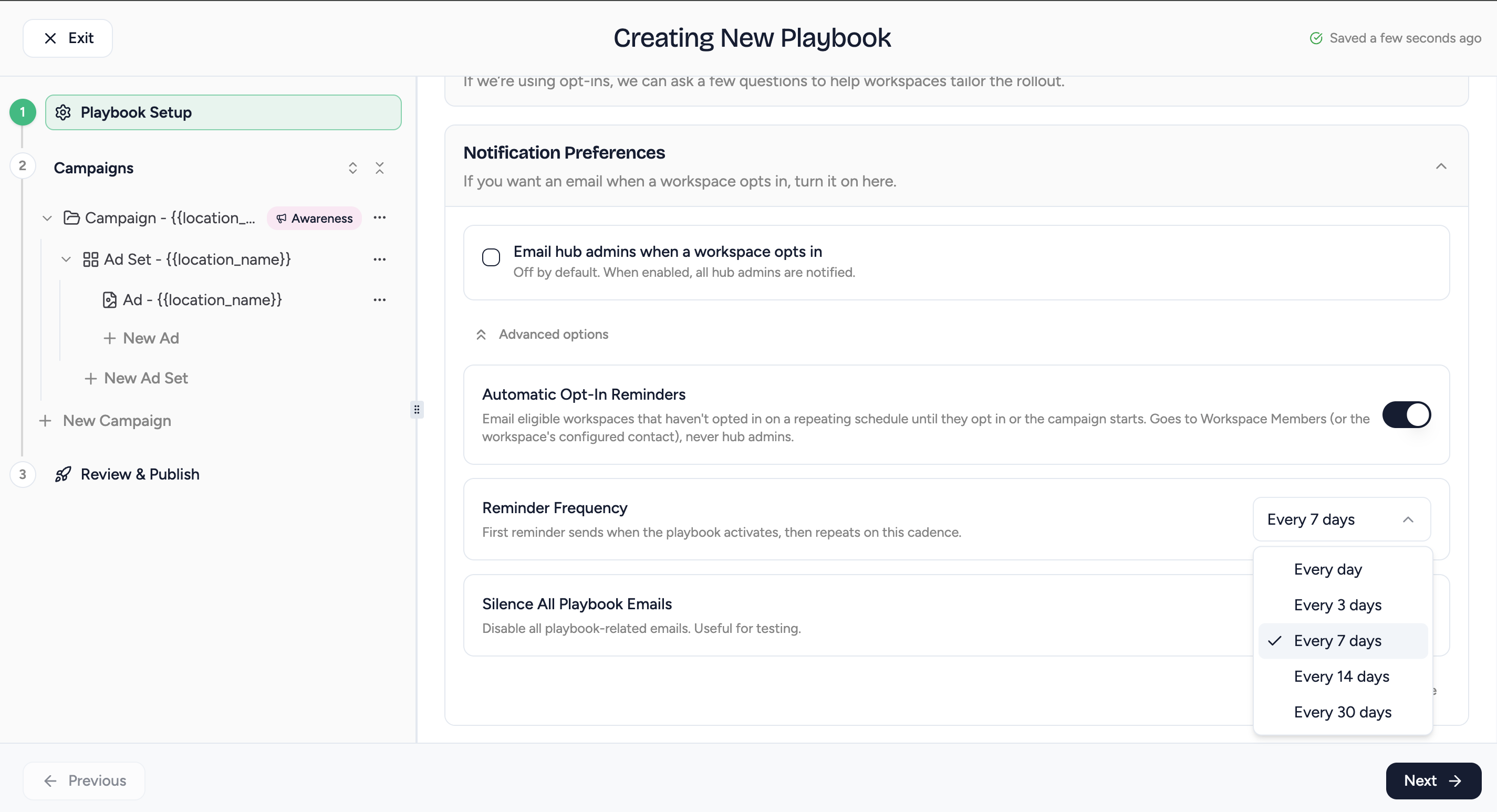
Finish Creating the Playbook
Save the playbook. The first reminder is sent when the playbook activates, then it repeats on the cadence you chose.
On an Existing Playbook
Open the Schedule Reminder Dialog
From playbook management, open the Schedule Reminder dialog for the playbook.
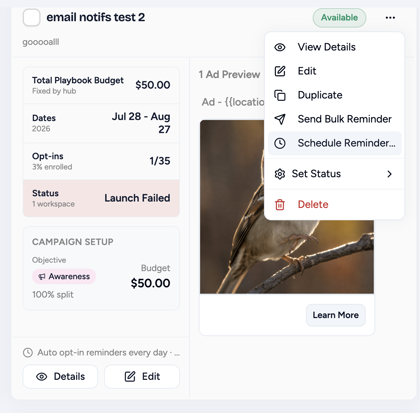
Enable Automatic Reminders and Pick a Frequency
Turn on the recurring reminder and choose the frequency
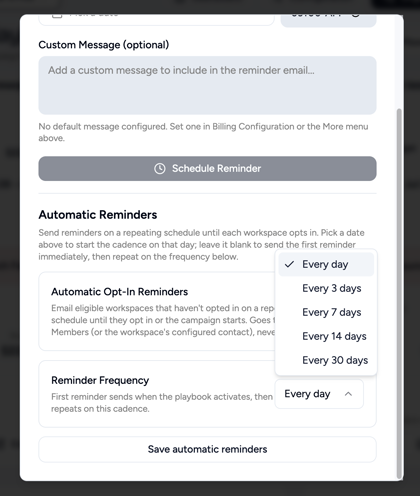
Add a Custom Message or a One-Off Reminder (Optional)
Write a custom message to include in the reminder, or schedule a single one-off reminder for a specific date.
Save
Save the dialog. The playbook shows the next scheduled reminder so you always know when the next one goes out.