Guests
Read-only links for agencies, clients, and external reviewers, created from the hub or from a single workspace.
Guests Never Edit Anything
Guests cannot create or edit content. Use guest links to give agencies, clients, or external reviewers a read-only window into your work.
Guest links give read-only access to the views you choose: Calendar, Posts, Media, Upload, and Analytics. Hub admins can include any workspace in the hub, and workspace users can include their own. Pick your role below.
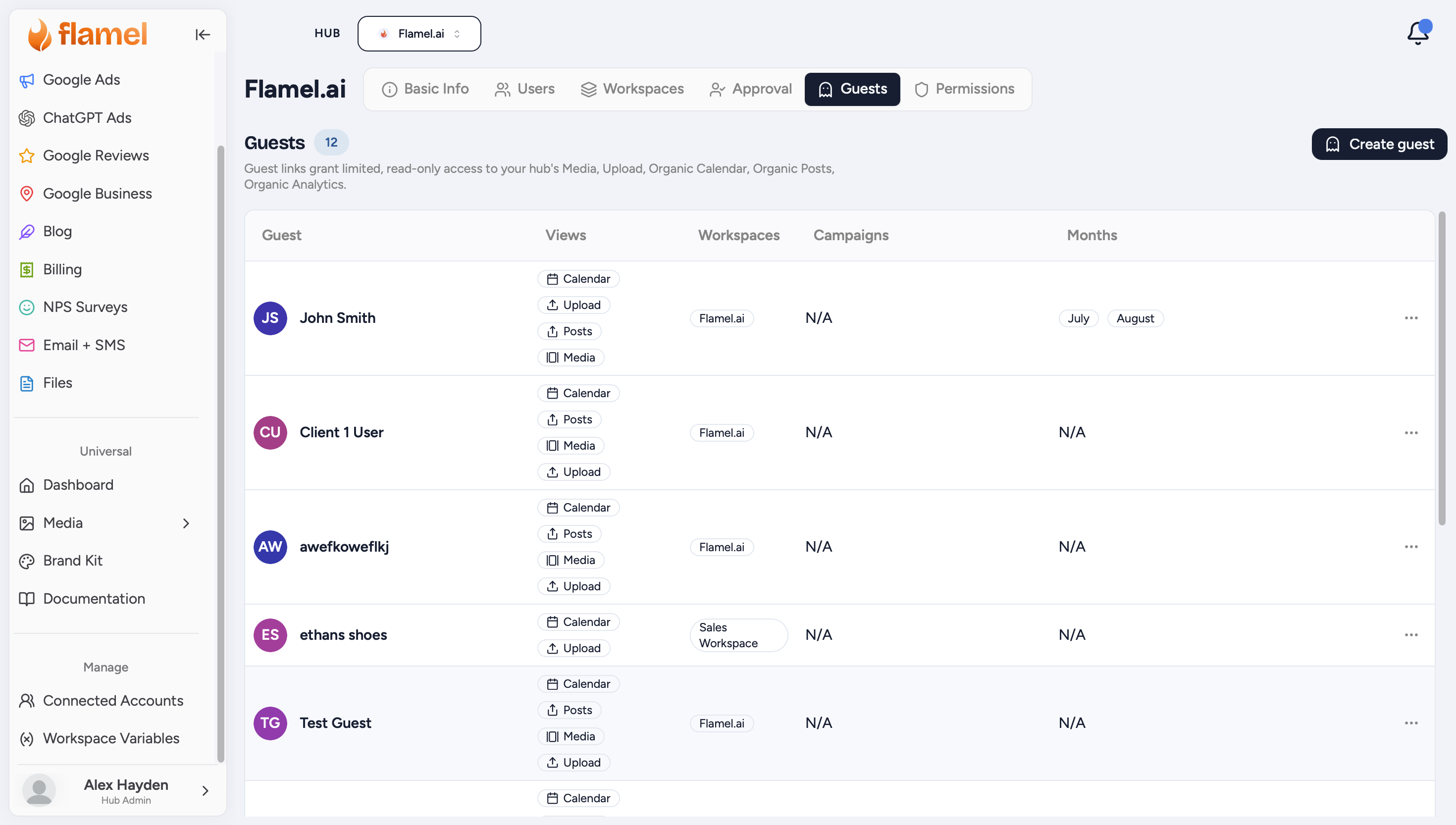
Open the Guests Tab and Click Create Guest
On the Hub page, open the Guests tab, then click Create Guest.
Name the Guest Link
Enter a name that identifies who this link is for (the agency or reviewer). This is how it appears in your guest list.
Select the Workspaces They Can See
The guest only ever sees the workspaces you grant here.
Choose the Dashboard Tools They Can Access
Pick which areas the guest can open: Calendar, Posts, Media, Upload, and Analytics. Only the views you select are visible.
Set the Time Period
Under Months, choose the period the guest can access. This limits the calendar and analytics history visible through the link.
Save and Share
Save to create the guest, then use Copy guest link from its row menu to copy the read-only link and share it.
You do not need to be a hub admin to hand your own photographer, agency, or franchise consultant a read-only link.
Open View Hub and Go to Guests
Click your avatar in the bottom-left corner, choose View Hub, then select the Guests tab. Your active workspace does not change.
The list shows only guest links scoped entirely to workspaces you can reach, so you never see or edit another workspace's guests. There is no Workspaces column, because every link here is yours.
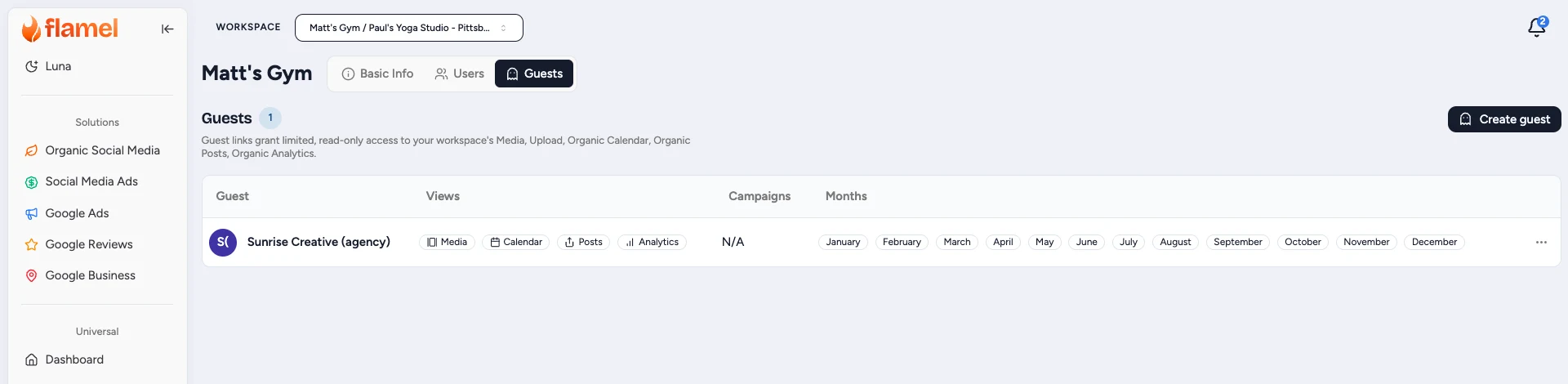
Click Create Guest and Name It
Use a name that identifies who the link is for. This is how it appears in your guest list.
Confirm the Workspace
Your workspace is already selected, and the picker only offers workspaces you can access. A link built here can never expose the rest of the hub.
Pick the Views and Time Period
Choose which areas the guest can open (Calendar, Posts, Media, Upload, Analytics), then set Months to limit how much calendar and analytics history the link exposes.
Save and Copy the Link
Save, then use Copy guest link from the row menu and send it. Anyone with the link gets the read-only view you configured, with no Flamel account required.
Treat the Link Like a Password
A guest link is the credential. Anyone who receives it can open the views you granted, so share it deliberately and use Remove guest to revoke it the moment it is no longer needed.
Manage Existing Guests
The guest list shows every configured link with its views, workspaces, campaigns, and months. Open the three-dot menu on a row to:
- Copy guest link: copy the shareable read-only link to your clipboard.
- Configure: change the views, workspaces, campaigns, or months.
- Remove guest: delete the link. Access is revoked immediately.
Guest vs User
| Guest | User | |
|---|---|---|
| Can view content | Yes (scoped) | Yes (per access) |
| Can create or edit content | No | Yes (per access) |
| Needs a Flamel account | No | Yes |
| Holds a seat | No | Yes |
Related Articles
Add teammates as full users when they need to create or edit content.
Send a real seat instead of a read-only link.
Control which solutions each full user can access.
The shared media guests can review when granted the Media view.
The calendar guests can browse in read-only mode.