Hub API
Create a read-only Hub API key and pull your hub's playbook opt-ins and ad spend into dashboards, spreadsheets, AI app builders like Lovable, or AI assistants.
For Hub Admins
Hub API keys are created and managed by Hub admins. A key reads one hub, the hub it was created in, and it cannot change anything.
The Hub API pulls your hub's playbook opt-ins and ad spend into a dashboard, spreadsheet, Zapier, Make, an AI app builder such as Lovable, or an AI assistant, so nobody downloads reports by hand.
Start with Claude or ChatGPT
Paste this into Claude, ChatGPT, or another AI assistant. It reads this page and walks you through creating a key and connecting your data.
Help me connect my Flamel hub's playbook opt-in and ad spend data to my own tools. First read https://docs.flamel.ai/manage/hub/api.md. Ask me which platform I want the data in. Then show me how to get a key: sign in at https://studio.flamel.ai, open my profile at the bottom left, select Manage Hub, open the API tab, create a key named after that platform, and copy it. Using what you know about my platform, walk me through storing the key there as a secret and setting up the integration, following that page's "Instructions for AI Agents". Never ask me to paste the key into this chat.
To build a dashboard directly in an AI app builder such as Lovable, create a key, then use the prompt in Build It with an AI App Builder.
Connect a Tool
Open the API tab
Open your profile at the bottom left, select Manage Hub, then open the API tab. The API Keys card lists the API base URL, the OpenAPI spec, and the MCP server URL with copy buttons, followed by your hub's keys.
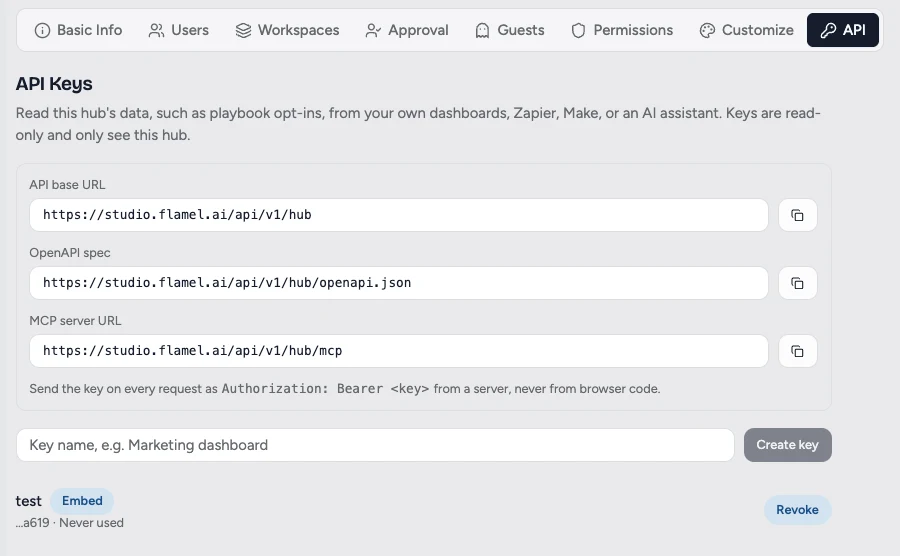
Create a key
Type a name that says where the key will be used, for example Lovable dashboard, and click Create key. Use one key per tool, so you can revoke a single integration without breaking the others.

Copy the key now
The key appears once under New API key. Copy it, store it safely, such as in your app builder's secret settings, then click Done. Flamel stores only its hash and cannot show it again. If you lose it, revoke it and create another.
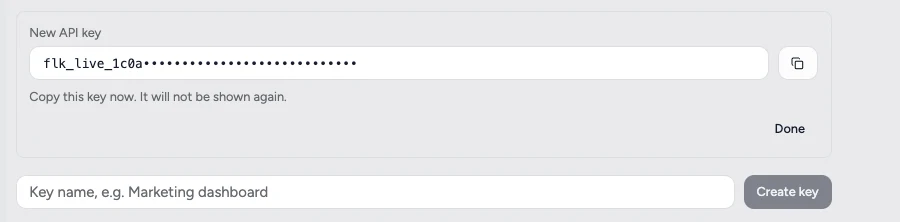
Check that it works
Send the key on every request as a bearer token. From a terminal:
read -rs FLAMEL_HUB_KEY && export FLAMEL_HUB_KEY
Paste the key when prompted. It is not echoed or saved in your shell history.
curl -s -H "Authorization: Bearer $FLAMEL_HUB_KEY" "https://studio.flamel.ai/api/v1/hub/opt-in-summary"
A 200 with opt-in counts confirms the key works. A 401 means it was mistyped, revoked, or is an embed key. The API tab shows each key's request count and last use. Keys do not expire; they work until you click Revoke.

Build It with an AI App Builder
To build the integration in Lovable, Bolt, Cursor, Claude, or a similar tool, paste this prompt into the builder and adjust the page you want:
Read https://docs.flamel.ai/manage/hub/api.md and follow its "Instructions for AI Agents" section to build a "Playbook Opt-ins" page that pulls live data from the Flamel Hub API. I will paste my Flamel key as the secret FLAMEL_HUB_KEY.
When the builder asks for the FLAMEL_HUB_KEY secret, paste your key into its secret or environment settings, never into chat or code.
Instructions for AI Agents
Follow these rules when you build an integration from this page.
- Call the API only from server-side code. Requests from a browser are rejected, and browser code would expose the key. In Lovable, create a Supabase edge function; elsewhere, use a server route, serverless function, or scheduled job. The front end calls your function, never
studio.flamel.ai. - Read the key from a secret named
FLAMEL_HUB_KEY. Never hard-code it, log it, or return it to the client. If the person has no key yet, send them to Manage Hub > API athttps://studio.flamel.aito create one, then tell them how to add it as a secret on their platform. Never ask them to paste it into a chat. - Send
Authorization: Bearer <key>on every request. All endpoints areGETunderhttps://studio.flamel.ai/api/v1/hub. The machine-readable schema is athttps://studio.flamel.ai/api/v1/hub/openapi.json. - Page through
/playbook-opt-insuntilnextCursorisnull, withlimit=500. Key rows byid. - Group and filter by
playbook.idandworkspace.id, never by name. Two playbooks can share a name, and names can carry trailing spaces. Showplaybook.solutionsas a platform label, such as Meta or Google Ads, so people can tell same-named playbooks apart. - Treat money as cents.
budgetCentsandspendCentsare integers; divide by 100 for dollars.budgetCentsandbudgetTypecan benull, for example on a questions-only opt-in. - Use
optedInAtto decide when a workspace opted in.updatedAtchanges on every status update, andsincefilters onupdatedAt. - Refresh no more than every few minutes. A full pull every 15 minutes is plenty. Stay under 120 requests a minute per key, and 20 a minute for
/opt-in-summaryand/spend-by-workspace. On429, wait a minute and retry. - Show errors instead of empty data. If the function fails, show the error with a retry button.
For a Lovable or Supabase project, deploy this edge function as flamel-opt-ins and call it from the page with supabase.functions.invoke("flamel-opt-ins"). It returns one flat object per opt-in.
supabase/functions/flamel-opt-ins/index.tsconst BASE = "https://studio.flamel.ai/api/v1/hub";type OptInRow = { id: string; playbook: { id: string; name: string; solutions: ("meta" | "google_ads" | "chatgpt_ads" | "organic_social")[]; }; workspace: { id: string; name: string; fields: Record<string, unknown> }; status: string; optedInAt: string; updatedAt: string; budgetCents: number | null; budgetType: "lifetime" | "daily" | null; variant: Record<string, string>; responses: { question: string; answer: string }[];};async function fetchOptIns(apiKey: string): Promise<OptInRow[]> { const rows = new Map<string, OptInRow>(); let cursor: string | undefined; do { const url = new URL(`${BASE}/playbook-opt-ins`); url.searchParams.set("limit", "500"); if (cursor) url.searchParams.set("cursor", cursor); const res = await fetch(url, { headers: { Authorization: `Bearer ${apiKey}` }, }); if (!res.ok) throw new Error(`Flamel API ${res.status}: ${await res.text()}`); const page = await res.json(); for (const row of page.data as OptInRow[]) rows.set(row.id, row); cursor = page.nextCursor ?? undefined; } while (cursor); return [...rows.values()];}const cors = { "Access-Control-Allow-Origin": "*", "Access-Control-Allow-Headers": "authorization, x-client-info, apikey, content-type",};Deno.serve(async (req) => { if (req.method === "OPTIONS") return new Response("ok", { headers: cors }); try { const rows = await fetchOptIns(Deno.env.get("FLAMEL_HUB_KEY")!); const result = rows.map((r) => ({ id: r.id, workspace: r.workspace.name, workspaceId: r.workspace.id, workspaceFields: r.workspace.fields, playbook: r.playbook.name.trim(), playbookId: r.playbook.id, platforms: r.playbook.solutions, status: r.status, optedInAt: r.optedInAt, budget: r.budgetCents == null ? null : r.budgetCents / 100, budgetType: r.budgetType, variant: Object.values(r.variant).join(" / ") || null, })); return new Response(JSON.stringify(result), { headers: { ...cors, "Content-Type": "application/json" }, }); } catch (err) { return new Response(JSON.stringify({ error: String(err) }), { status: 502, headers: { ...cors, "Content-Type": "application/json" }, }); }});
A good default page shows summary cards for Active (status is active), New this week (optedInAt on or after 00:00 UTC six days ago, the same window as last_7_days), and Workspaces opted in (distinct workspaceId). Below them, show a table of workspace, playbook, platform, status, opted-in date, budget, and variant, newest first, with filters for playbook (grouped by playbookId) and status. Label statuses for people: active is Live, in_review is Awaiting approval, and questions_only is Questions only.
To confirm the build is wired up correctly, its count of opt-ins whose optedInAt falls on a UTC date from startDate to endDate of the last_7_days entry in /opt-in-summary should match that entry's optIns, and its active count should match activeOptIns.
Endpoints
All paths are relative to https://studio.flamel.ai/api/v1/hub, and every endpoint is a GET.
| Path | Returns | Query parameters |
|---|---|---|
/playbook-opt-ins | Every workspace opt-in across the hub's playbooks, the same data as Bulk Actions > Download Report | since, playbookId, status, limit, cursor |
/opt-in-summary | Opt-ins and opted-in workspaces for today, yesterday, the last 7 days, and the last 30 days, each with the period before it, plus the number of active opt-ins | None |
/spend-by-workspace | Paid ad spend in cents for each workspace over a period, next to the same-length period before it | period |
Playbook opt-ins
The response is { "data": [...], "nextCursor": "..." }, oldest change first. Each row is one workspace's opt-in to one playbook:
Example row{ "id": "6702f1c0a1b2c3d4e5f60718", "playbook": { "id": "66f0a9b8c7d6e5f4a3b2c1d0", "name": "Fall Campaign", "solutions": ["meta"] }, "workspace": { "id": "65aa11bb22cc33dd44ee55ff", "name": "Downtown", "fields": { "locationId": "STORE-0142" } }, "status": "active", "optedInAt": "2026-10-05T21:45:00.000Z", "updatedAt": "2026-10-05T21:45:03.000Z", "budgetCents": 100000, "budgetType": "lifetime", "variant": { "Offer": "$70", "Audience": "New Clients" }, "responses": [{ "question": "Promo code?", "answer": "FALL70" }]}
playbook.solutions lists the platforms the playbook runs on: meta, google_ads, chatgpt_ads, or organic_social. Most playbooks have one, and a multi-platform playbook lists each, so render one label per value.
workspace.fields holds your hub's custom workspace fields by key, so you can match rows to your own store IDs. Keys are the field keys themselves, such as locationId, with no custom. prefix, which is only the syntax for captions and ad copy. Archived fields are left out, and the object is {} for a workspace with no values. budgetCents and budgetType can be null, for example on a questions-only opt-in, and variant is {} when the playbook has no variants.
| Parameter | Use |
|---|---|
since | ISO 8601 time. Returns only opt-ins created or changed at or after it. |
playbookId | Limit to one playbook. |
status | One of pending, pending_billing, in_review, deploying, active, partially-deployed, failed, cleanup_failed, cancelling, cancelled, completed, paused, questions_only. |
limit | Rows per page, 1 to 500. Defaults to 100. |
cursor | The nextCursor value from the previous page. |
Keep requesting with cursor until nextCursor is null:
fetch-opt-ins.jsconst BASE = "https://studio.flamel.ai/api/v1/hub";async function fetchOptIns(apiKey, since) { const rows = new Map(); let cursor; do { const url = new URL(`${BASE}/playbook-opt-ins`); url.searchParams.set("limit", "500"); if (since) url.searchParams.set("since", since); if (cursor) url.searchParams.set("cursor", cursor); const res = await fetch(url, { headers: { Authorization: `Bearer ${apiKey}` }, }); if (!res.ok) throw new Error(`Flamel API ${res.status}: ${await res.text()}`); const page = await res.json(); for (const row of page.data) rows.set(row.id, row); cursor = page.nextCursor ?? undefined; } while (cursor); return [...rows.values()];}
Opt-ins created or changed since October 1:
curl -s -H "Authorization: Bearer $FLAMEL_HUB_KEY" "https://studio.flamel.ai/api/v1/hub/playbook-opt-ins?since=2026-10-01T00:00:00Z"
Only active opt-ins, 500 per page:
curl -s -H "Authorization: Bearer $FLAMEL_HUB_KEY" "https://studio.flamel.ai/api/v1/hub/playbook-opt-ins?status=active&limit=500"
Opt-in summary
periods holds one entry each for today, yesterday, last_7_days, and last_30_days. optIns counts opt-ins created in the range and workspaces counts distinct workspaces that opted in. Days are UTC, and today is the day so far.
Example response{ "timezone": "UTC", "asOf": "2026-10-07T16:41:00.000Z", "activeOptIns": 73, "periods": [ { "period": "last_7_days", "startDate": "2026-10-01", "endDate": "2026-10-07", "optIns": 6, "workspaces": 6, "prior": { "startDate": "2026-09-24", "endDate": "2026-09-30", "optIns": 4, "workspaces": 4 } } ]}
Spend by workspace
period is one of today, yesterday, last_7_days, or last_30_days, and defaults to last_30_days. The first request for a period each day can take several seconds while the figures are computed; later requests are fast.
curl -s -H "Authorization: Bearer $FLAMEL_HUB_KEY" "https://studio.flamel.ai/api/v1/hub/spend-by-workspace?period=last_7_days"
Example response{ "period": "last_7_days", "timezone": "UTC", "current": { "startDate": "2026-10-01", "endDate": "2026-10-07" }, "prior": { "startDate": "2026-09-24", "endDate": "2026-09-30" }, "asOf": "2026-10-07T15:02:11.000Z", "freshness": "fresh", "totals": { "spendCents": 2462863, "priorSpendCents": 2310450, "unattributedSpendCents": 0 }, "workspaces": [ { "id": "65aa11bb22cc33dd44ee55ff", "name": "Downtown", "fields": { "locationId": "STORE-0142" }, "spendCents": 23110, "priorSpendCents": 19875 } ]}
freshness is fresh, stale, syncing, failed, never_synced, or no_accounts. unattributedSpendCents is spend in the period that could not be matched to a workspace.
Keep a Dashboard in Sync
For most dashboards, pull all of /playbook-opt-ins every 15 minutes or so. Even a large hub takes only a few pages, and a full pull catches status changes as well as new opt-ins.
To pull only what changed, keep the largest updatedAt you have received and pass it as since on the next pull. Because since includes rows changed at exactly that time, you will see that row again, so merge rows by id rather than appending them. since returns any change, including a status update, so use optedInAt to decide whether a row is a new opt-in.
Limits and Errors
Each key can make 120 requests a minute. /opt-in-summary and /spend-by-workspace are also limited to 20 requests a minute per key. Responses carry standard RateLimit headers, and a request over the limit gets a 429; wait for the window to reset and retry.
| Status | error | Meaning |
|---|---|---|
400 | invalid_request | A query parameter is invalid. issues names the field. |
401 | invalid_api_key | The key is missing, mistyped, revoked, or an embed key. |
403 | hub_access_suspended | The hub's Flamel access is suspended. |
429 | rate_limited | Too many requests for this key. |
Use It from an AI Assistant
The same three operations are MCP tools at https://studio.flamel.ai/api/v1/hub/mcp. Add that URL to an MCP client that lets you set a request header, such as Claude Code or Cursor, and the client discovers the tools on its own. In Claude Code:
claude mcp add --transport http flamel-hub https://studio.flamel.ai/api/v1/hub/mcp --header "Authorization: Bearer $FLAMEL_HUB_KEY"
Claude.ai and ChatGPT custom connectors cannot send a fixed key. To work in Flamel from those apps as yourself, add the Flamel connector instead, which signs you in. For a server integration, use the onboarding prompt at the top of this page.
Things to Know
Read keys and embed keys are different. Every key carries a scope. Read keys, the default for a new key, call the Hub API. Embed keys, marked Embed in the list, only sign embedded views, and the API refuses them with a 401. Keys created before scopes existed stay embed keys, so create a new key for API use.
Spend figures are counted in UTC. Each spend response carries asOf, the time of the oldest complete ad account sync behind the figures, and a freshness value. (In /opt-in-summary, asOf is simply when the response was built.) Check both before you publish a number, especially early in the day, when today's spend is still partial.
There are no webhooks or scheduled emails yet. Poll the API on a schedule instead. Zapier and Make do not have a Flamel app, but their HTTP request steps can call any endpoint above with the bearer header.
Treat a key like a password. Anyone holding it can read the hub's opt-ins and spend. Never put a key in browser code, chat messages, or a shared document.