Multi-Unit Onboarding
Set up one owner to manage multiple workspace locations within your franchise network.
For Hub Admins
For a franchisee who owns or manages several locations, create one workspace per location and assign the owner to each.
Before You Start
- Create a workspace for each location.
- Gather the owner's email address.
- Confirm which locations the owner should access.
Hub Admin Setup
Create a Workspace for Each Location
Each location gets its own workspace. Follow the Onboard a New Workspace process for each one before assigning the owner.
Use Consistent Naming
Use consistent names so owners can tell locations apart in the Switcher:
- Brand - Cincinnati
- Brand - Louisville
- Brand - Unit 101
Assign the Owner to Multiple Workspaces
- Go to Hub > Users.
- Open the owner's user record.
- Add each workspace they manage.
- Save.
The owner can access every assigned location.
Connect Location-Specific Accounts
Social accounts, business info, and settings are managed separately per workspace. If a location uses a solution that needs social accounts, connect them now or let the workspace owner connect them later.
How Multi-Unit Access Works
Once assigned to multiple workspaces, the owner switches between locations using the Switcher.
Two Locations, One Ad Account
Give each service area its own workspace so it has its own targeting, radius, and landing page. Pages and ad accounts can be shared: if two locations use one Meta ad account and one Facebook Page or Instagram account, connect both workspaces to those accounts. Keeping both locations in one workspace means changing its configuration whenever a campaign switches locations.
Create the second workspace
Follow Onboard a New Workspace, for example Brand - Montgomery beside Brand - Cincinnati.
Point it at the shared accounts
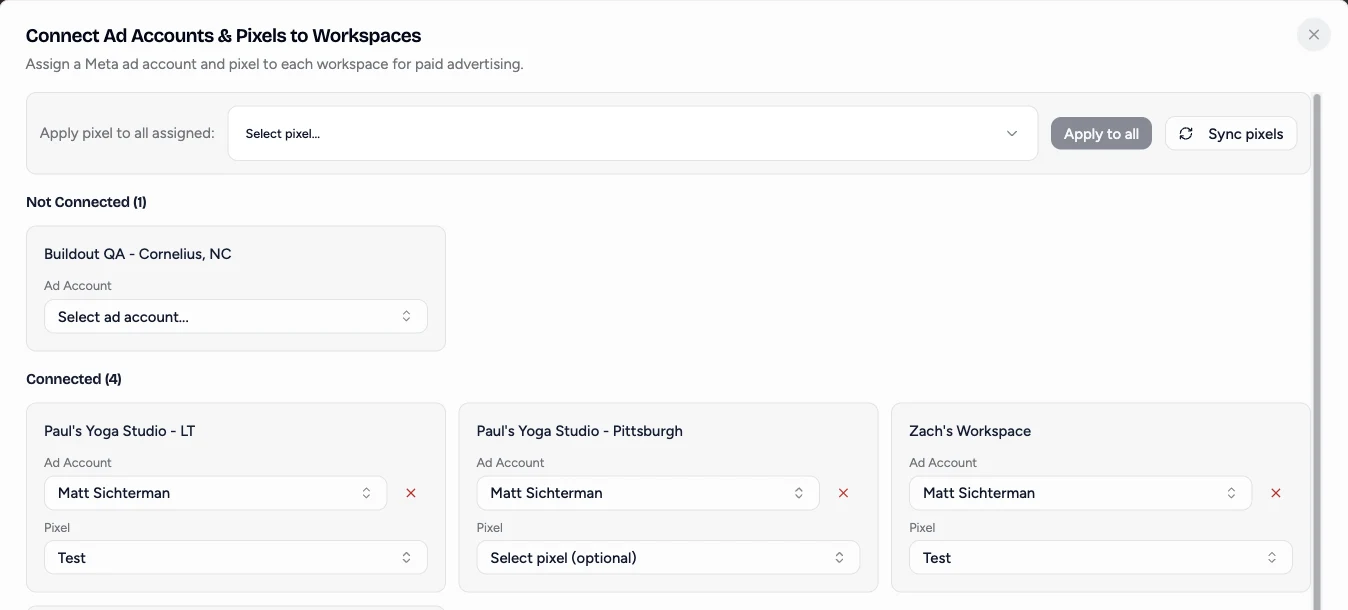
As a hub admin, open Connected Accounts. Click Connect Ad Accounts and pick the shared ad account for the new workspace. Then open the Connected tab, expand Facebook, click Copy to workspace on the shared Page, and choose the new workspace. Repeat under Instagram for the Instagram account. Use a desktop browser; the mobile view does not show Copy to workspace.
Give each workspace its own targeting
In Ad Configuration, set each workspace's own location, radius, and Website URL. Playbooks now launch one campaign per workspace, each named for its location.
Organic broadcasts post twice
Both workspaces publish to the same Page. A broadcast sent to both workspaces posts twice on that Page, so send organic broadcasts to only one of them.
When a location gets its own ad account or Page, switch its workspace connection. Its configuration stays the same.