Close a Workspace
Permanently remove a workspace that is no longer active in your hub.
For Hub Admins
Removing a workspace takes it out of your hub, pauses its running campaigns, and moves its scheduled posts to drafts. Export anything you want to keep (analytics, media, post history) before you close it.
Before You Start
Export the records you want to keep:
- Analytics reports
- Media assets
- Content history
- Scheduled content
Close the Workspace
Disconnect Accounts
Open Connected Accounts and disconnect every connected social account. This prevents future publishing attempts and keeps connections tidy.
Remove or Unassign Users
Go to Hub > Users. Remove the user if they are leaving the network entirely, or unassign the workspace if they still manage other locations. Verify no one needs access before continuing.
Review Workspace Variables
Open Workspace Variables and remove or update any information tied to the closing location. This keeps reporting and location data accurate across the network.
Remove the Workspace
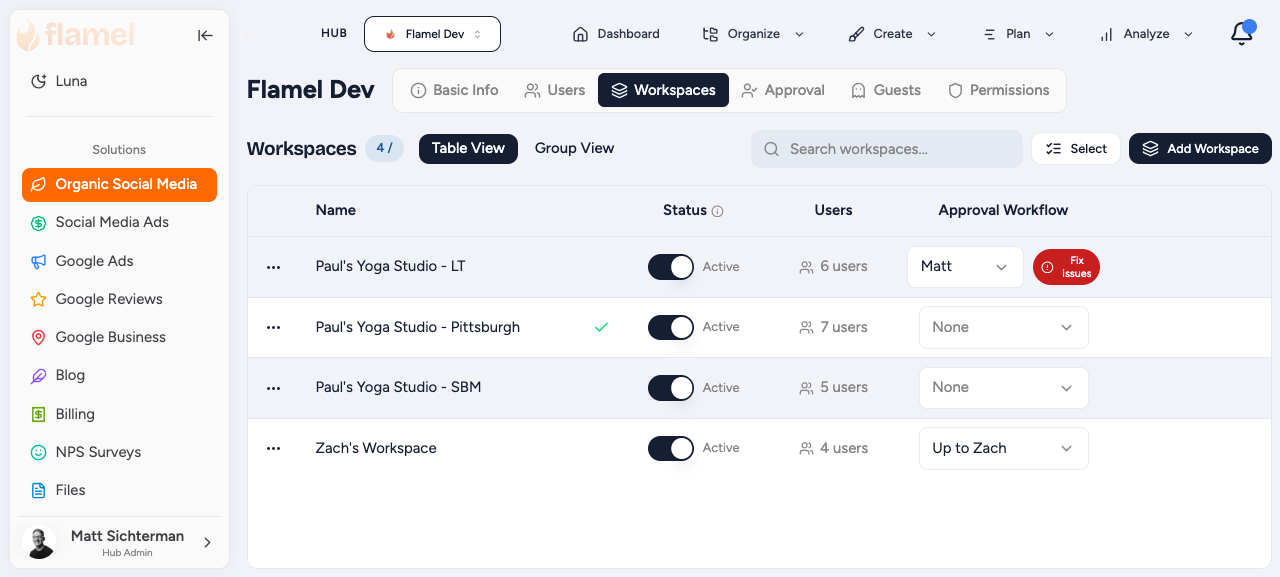
Go to Hub, then Workspaces, select the workspace, click Remove, and confirm.
What Remove Does
Flamel pauses the workspace's running Meta, Google Ads, and ChatGPT Ads campaigns and moves future scheduled posts to drafts. If Flamel cannot pause a campaign, the removal stops so nothing keeps spending. Contact support if you need a removed workspace back. Restoring it does not restart its campaigns or billing.
Closure Checklist
- Data exported
- Social accounts disconnected
- Users removed or unassigned
- Workspace Variables updated
- Workspace removed