Workspace Broadcasting
Workspace Broadcasting lets you create one social post and publish it to multiple workspaces at the same time.
Instead of creating the same post for each location, select several social accounts you can access and publish one post to all of them at once.
You do not need to be an admin to enable or use Workspace Broadcasting. You can broadcast to the workspaces you have access to.
Enable Workspace Broadcasting
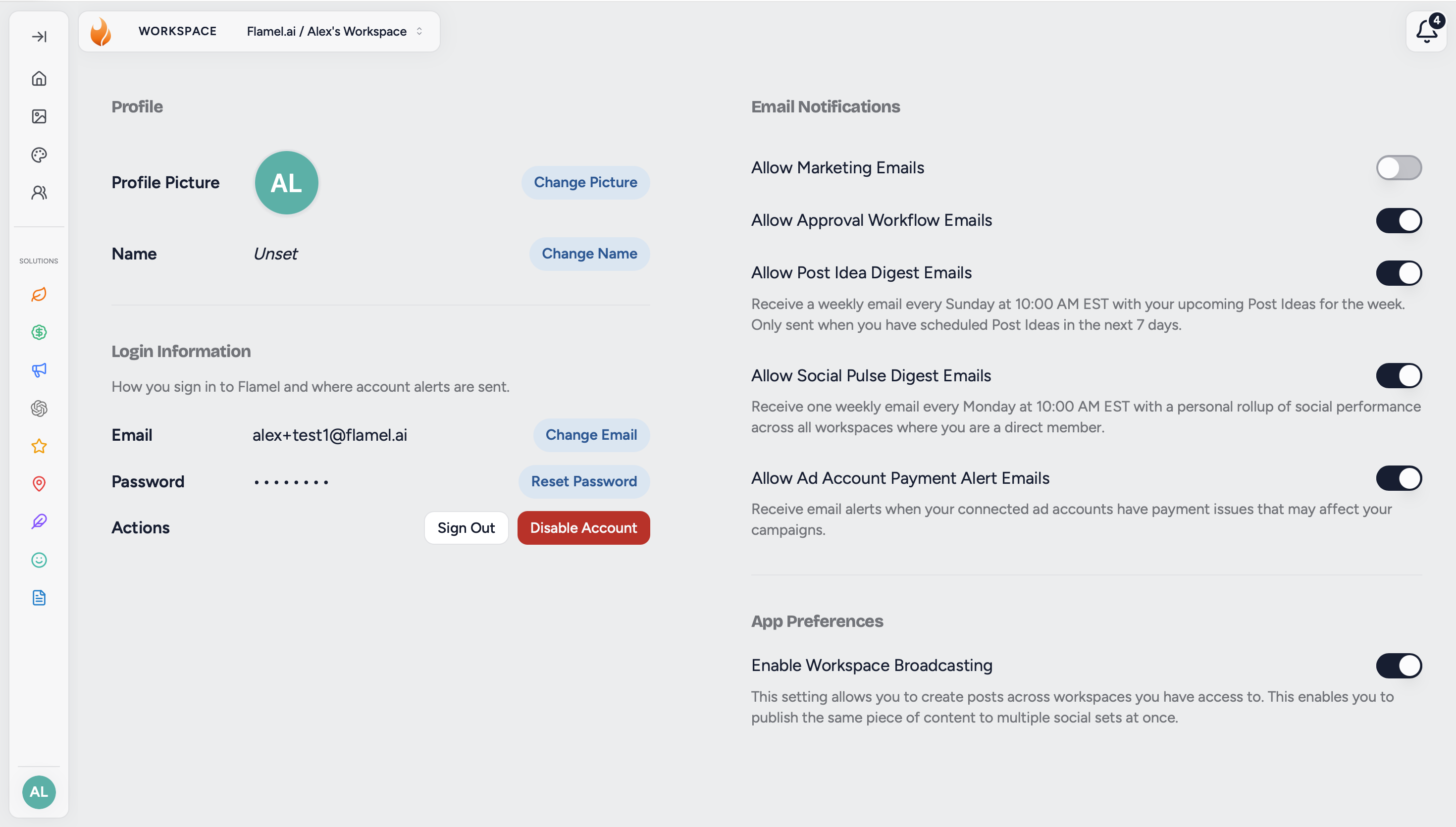
Before you can post across multiple workspaces, turn on Workspace Broadcasting in your profile settings.
- Click your profile picture in the bottom-left corner.
- Click Profile.
- Find the App Preferences section.
- Turn on Workspace Broadcasting.
Once enabled, you'll be able to select social accounts from multiple workspaces when creating a post.
Create a Post Across Multiple Workspaces
After Workspace Broadcasting is enabled:
- Open the Post Editor.
- In the Post To section, you'll see the social accounts available across the workspaces you have access to.
- Select the accounts you want to publish the post to.
- Create your post as usual.
- Choose whether to Post Now or Schedule the post.
- Confirm that the post appears on each workspace calendar as expected.
The same piece of content will be published or scheduled to each selected social account.
Workspace Variables
If you want to include location specific information in the caption use Workspace Variables. This automatically fills in the correct information for each workspace.
For example, instead of manually creating a separate caption for each location, you can add:
We're excited to see you at {location_name}!
When the post is published, Flamel will replace the variable with the appropriate location name for each workspace.
This lets you create one post while still giving each location a more personalized caption.
Best Practices
- Check your selected accounts before posting. Make sure you haven't included a workspace that shouldn't receive the content.
- Verify the calendars. Check workspace calendars after scheduling or publishing to confirm the post reached the intended locations.
- Verify the Workspace Variables. Check workspace posts when using variables to insure that each location has the right information.
- Use Workspace Broadcasting for repeatable content. It's especially useful for network-wide announcements, promotions, seasonal content, or other posts that should appear across multiple locations.
Related Articles
Create, customize, schedule, and publish social media posts from one place.
Use location-specific information to personalize content across your workspaces.
View and manage scheduled and published content across your workspace.
Create one post and distribute it to multiple workspaces from the Hub.