Platform settings and account tagging
Add caption mentions, media tags, Instagram collaborators, alt text, locations, Reel covers, and platform-specific publishing options in the Post Editor.
Who can use these settings?
Workspace users can configure settings for their connected accounts. Hub admins can configure platform and media metadata for broadcasts, but Instagram collaborators and location tags are available only in workspace posts.
Platform settings let you tailor one draft for each destination without creating separate posts. Open Post Drafts, select the accounts under Post to, then use Manage to open the controls described below. Editing these settings does not publish the post.
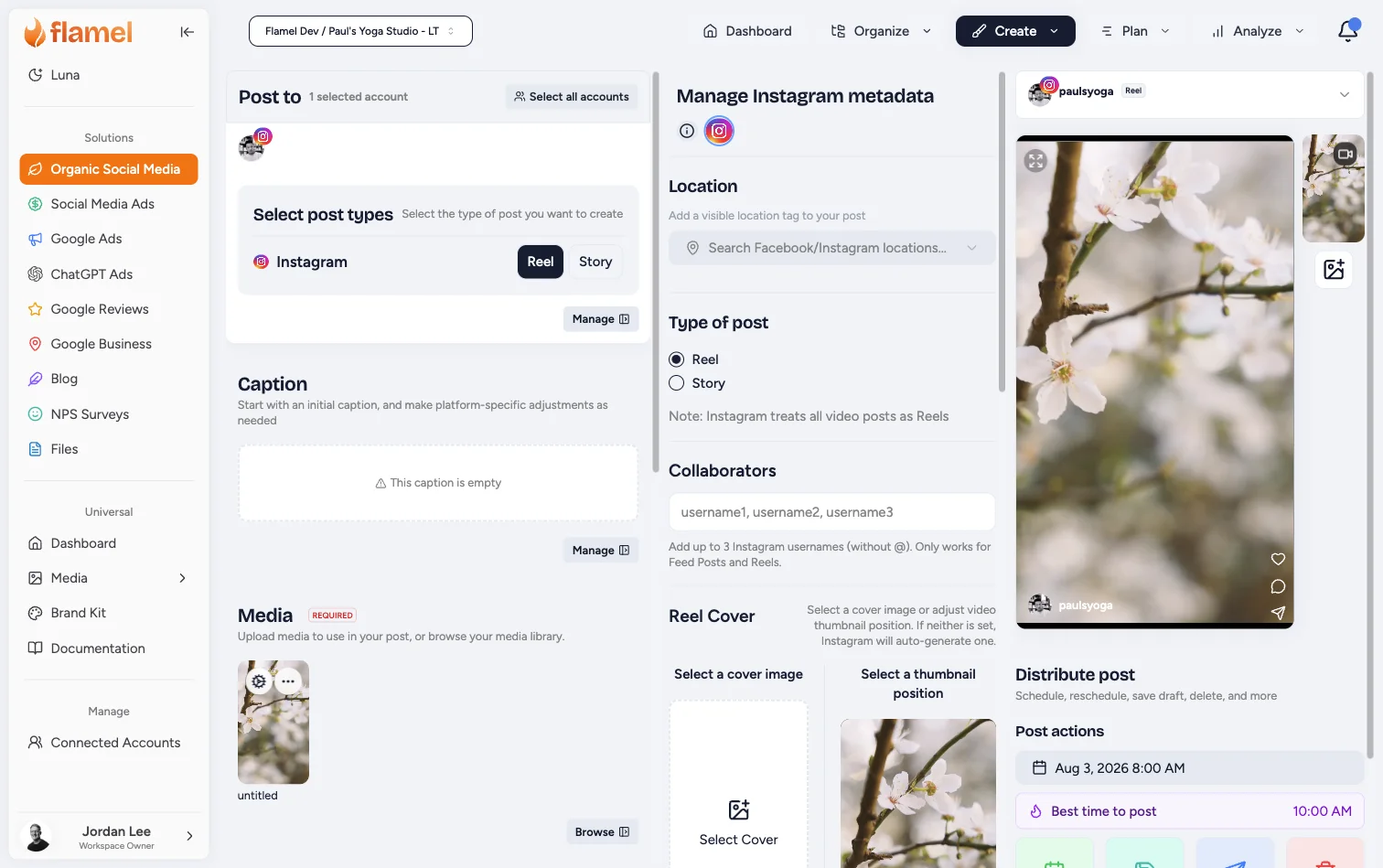
Pick the right kind of account reference
| Goal | Use | Where to add it |
|---|---|---|
| Refer to an account in the caption | Caption mention | The platform-specific caption editor |
| Attach an account to a point on an image | Media tag | Manage metadata for the selected media |
| Invite another Instagram account to co-author the post | Collaborator | Instagram metadata for a workspace Feed Post or Reel |
These options are separate. Adding a collaborator does not place an account tag on the image or insert an @ mention in the caption.
Mention an account in the caption
Mentions are platform-specific because each network identifies accounts differently.
Select the Platforms You Want to Post to
Go to the Post To section and select the accounts and platforms you want to post to.
Open the caption editor
Click Manage beside Caption.
Select one platform
Choose the platform icon at the top of the caption panel.
This creates a platform-specific caption override, so the mention is added only to that destination.
Account mentioning is disabled until one platform is selected.
Find the account
Type @ followed by the account name, or click the @ Mention Accounts button in the caption toolbar. Search for the account and click the correct result.
Some accounts may have different account names for different platforms, so make sure you type in the correct name for the correct platform.
Review the platform preview
Confirm that the correct account appears as a formatted mention in the preview.
Repeat the process in another platform's caption override if that destination also needs a mention.
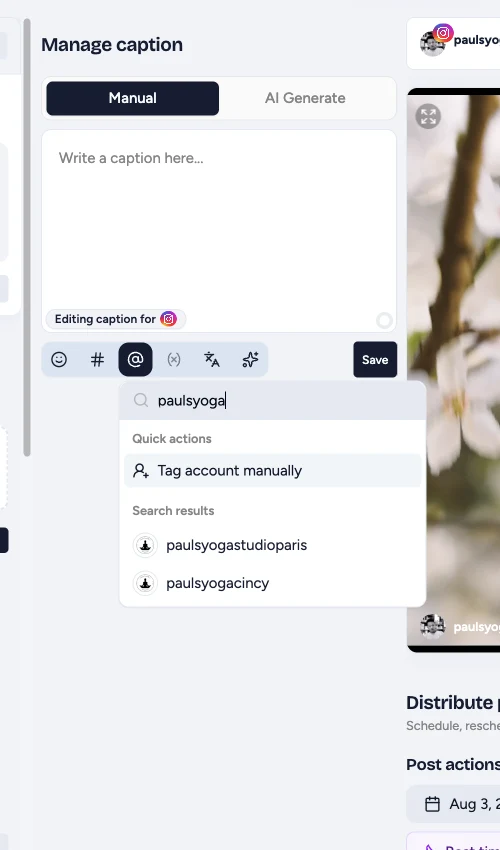
Use a Caption Mention for Text
If the account should appear in the written caption, use a caption mention. Media tags and Instagram collaborators do not add visible text to the caption.
Tag an account on media
Media tags are attached to a specific image and a specific platform.
Open media metadata
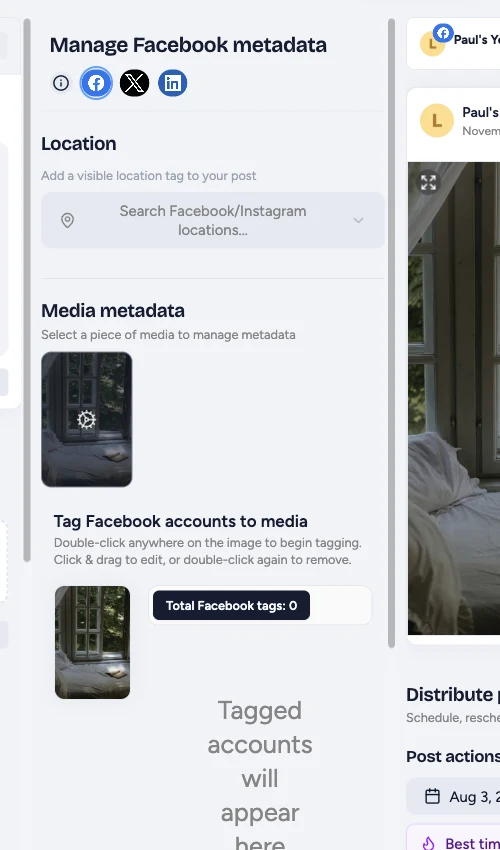
Under Media, click the settings icon on the image you want to tag. In Manage metadata, choose the destination platform icon.
Start the tag
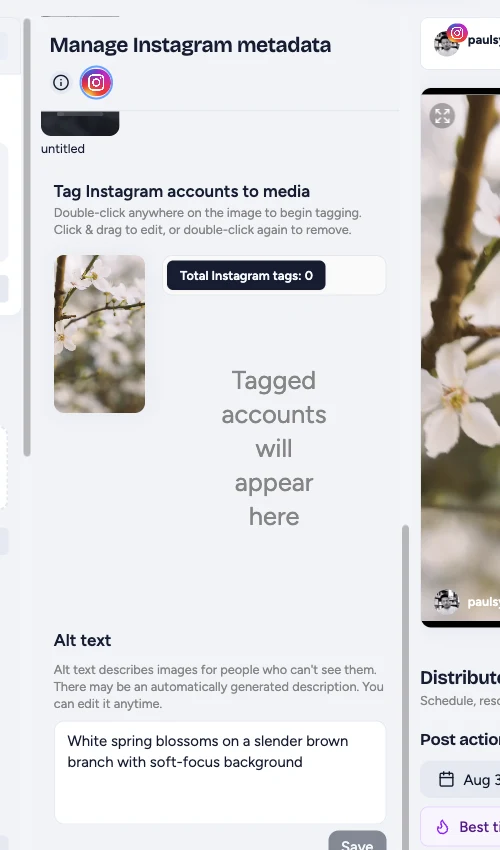
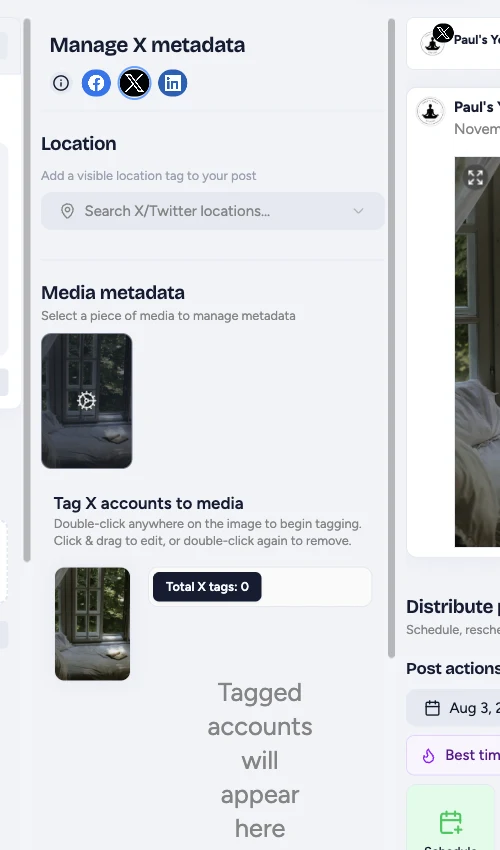
Scroll to Tag [Platform] accounts to media and double-click the correct point on the image.
Select the account
Search for the account and choose it from the results. After you type at least three characters, Tag account manually also appears.
For a manual Facebook tag, enter the numeric Facebook Page ID, not the Page name.
Position or remove the tag
Click and drag a tag to move it. Double-click it again, or use the X beside the tagged account, to remove it.
Use Selected media tags and Total [Platform] tags to check a carousel before you finish.
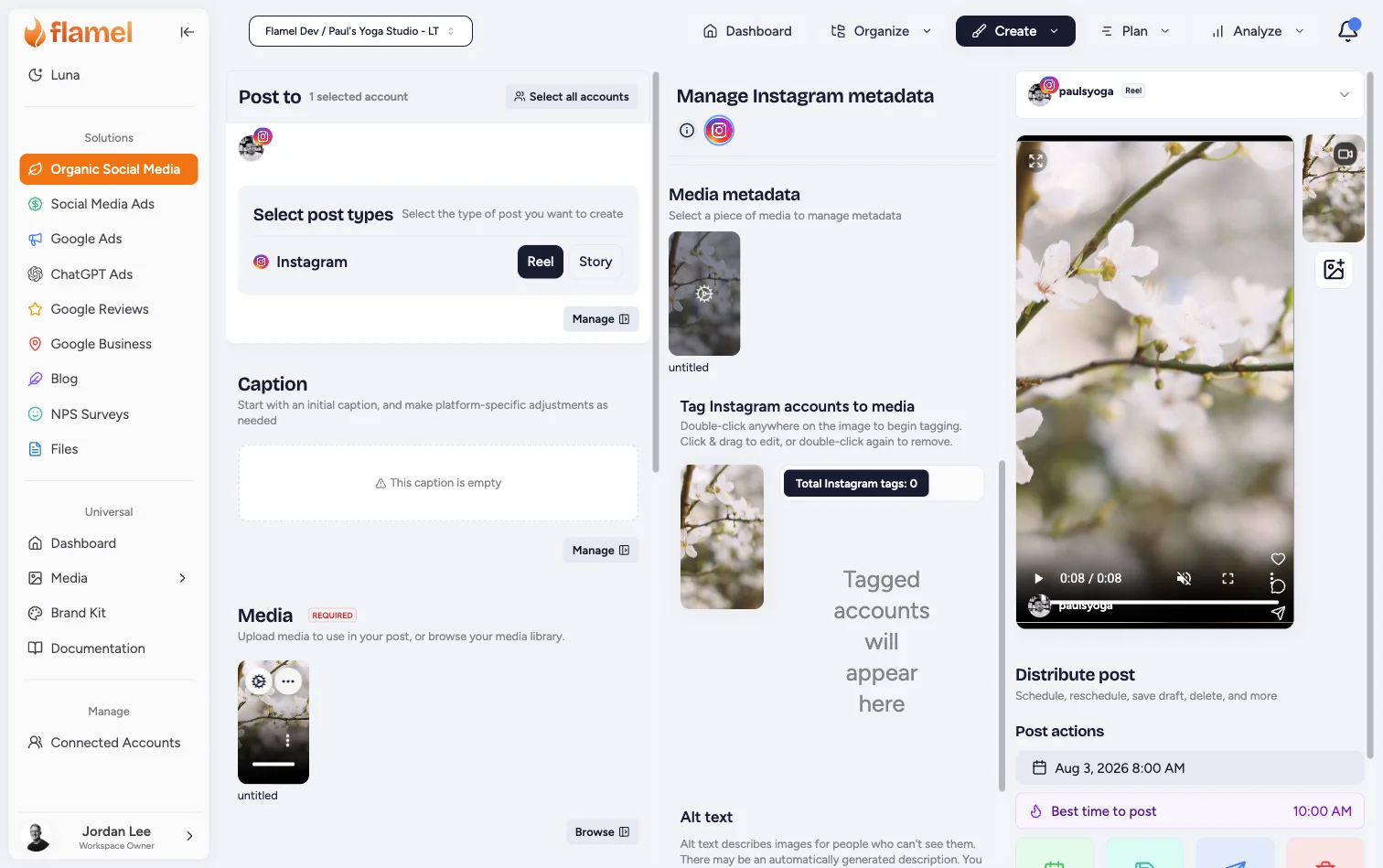
When the Media Tagger Is Hidden
LinkedIn does not show the media account tagger. Instagram and Facebook Stories also hide it. Choose a Feed Post or Reel when you need Instagram media tags.
Add Instagram collaborators
Collaborators are available for Instagram Feed Posts and Reels created from a workspace.
Open Instagram metadata
Select an Instagram account under Post to, click Manage, and choose the Instagram icon in the metadata panel.
Choose the post type
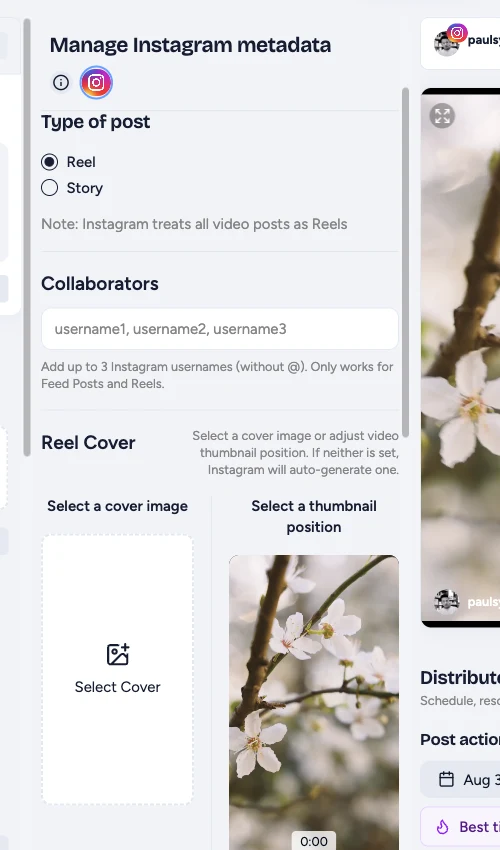
Select Post for a Feed Post or Reel for a video. Instagram treats single-video posts as Reels.
The Collaborators field is hidden for Stories.
Enter the usernames
In Collaborators, enter up to three Instagram usernames separated by commas:
username1, username2, username3
Leave out the @ symbol. Usernames may contain letters, numbers, periods, and underscores.
Save and review
Click outside the field to save the list, then confirm the usernames remain in Collaborators.
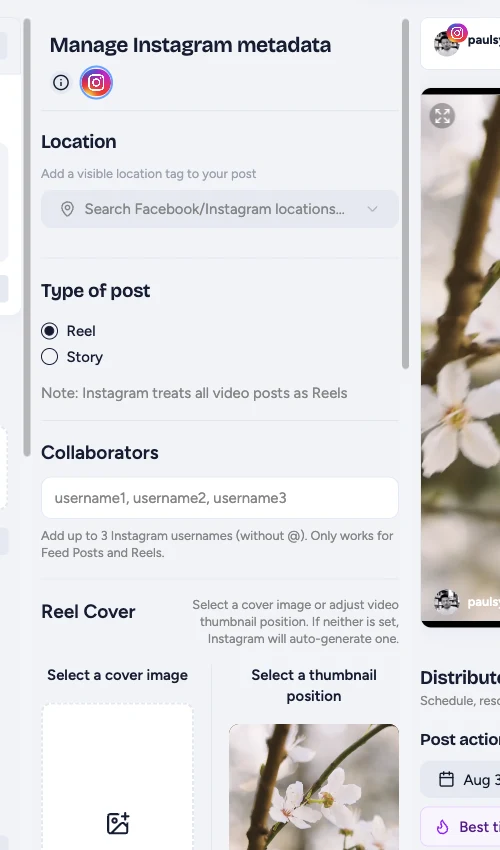
Collaborators Are Workspace-Only
The collaborator field is not shown in Hub or broadcast context. If a location needs a collaborator, create or edit the post while switched into that workspace.
Set locations, alt text, and Reel covers
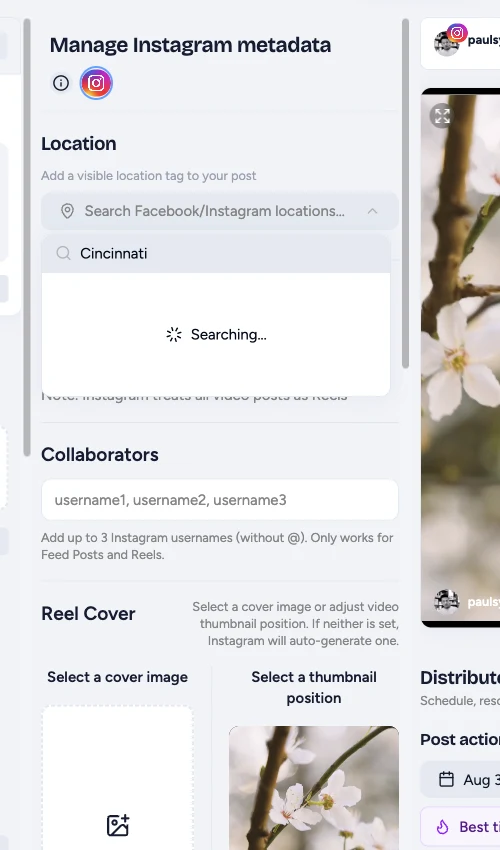
Location
A visible Location picker appears for Facebook, Instagram, and X workspace posts. Search for the place and select the correct result. Hub and broadcast editors show the control as unavailable because locations must be chosen in workspace context.
Alt text
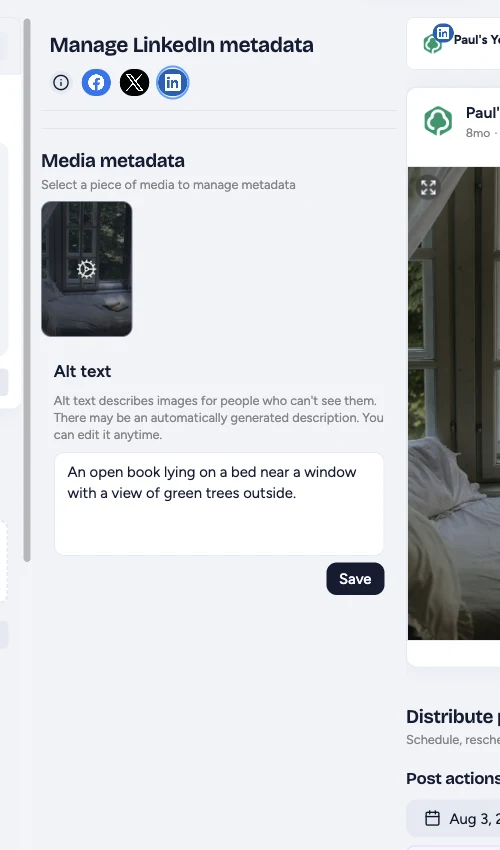
Select a media item in Manage metadata, then edit Alt text. Flamel may provide an automatically generated description, but you can replace it with a concise description of the important visual content.
Alt text is attached to the media item. Review each image in a carousel.
Instagram Reel cover
For an Instagram Reel, choose an image from the media library or select a thumbnail position from the video. If neither is set, Instagram generates a cover.
TikTok publishing settings
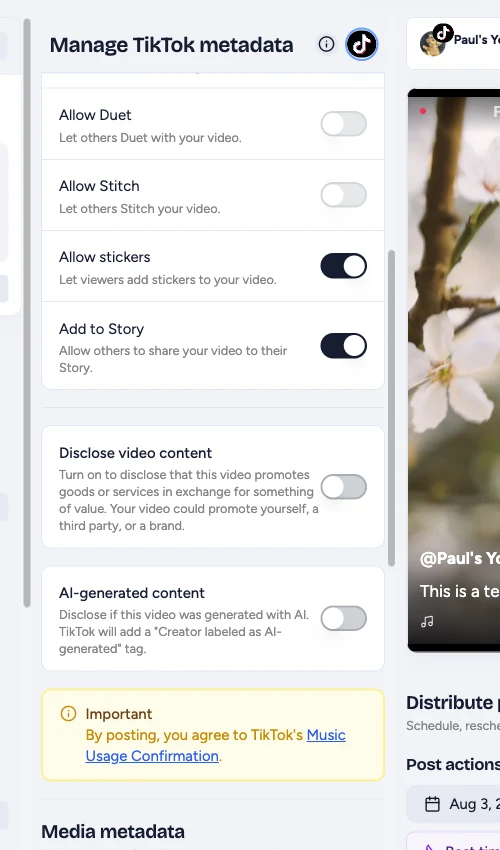
TikTok requires more account-specific choices than the other destinations. Select TikTok in Manage metadata, then review:
- Title
- Privacy Settings, which must be selected before publishing
- Allow comments
- Allow Duet, Allow Stitch, Allow stickers, and Story sharing for video
- Commercial content disclosure, including Your brand and Branded content
- AI-generated content disclosure
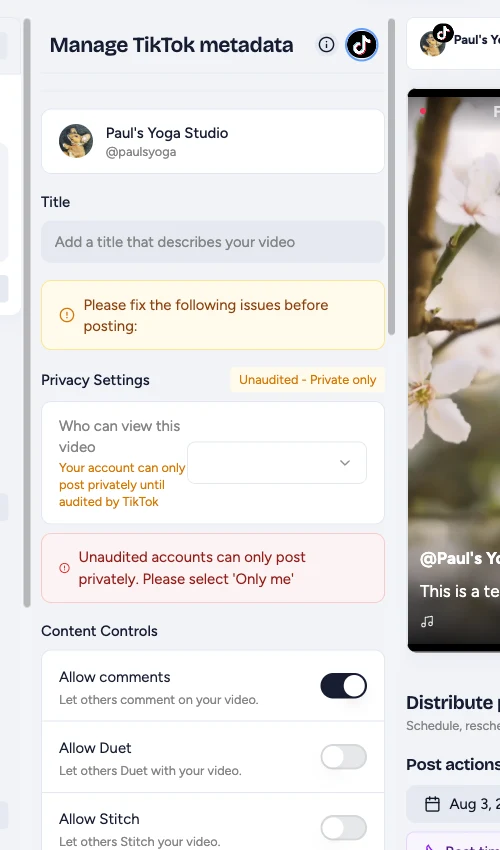
Some interaction controls may be unavailable based on the connected TikTok account. Branded content cannot use private visibility. The TikTok description follows the caption and is limited to 2,200 characters in the editor.
Google Business Profile publishing settings
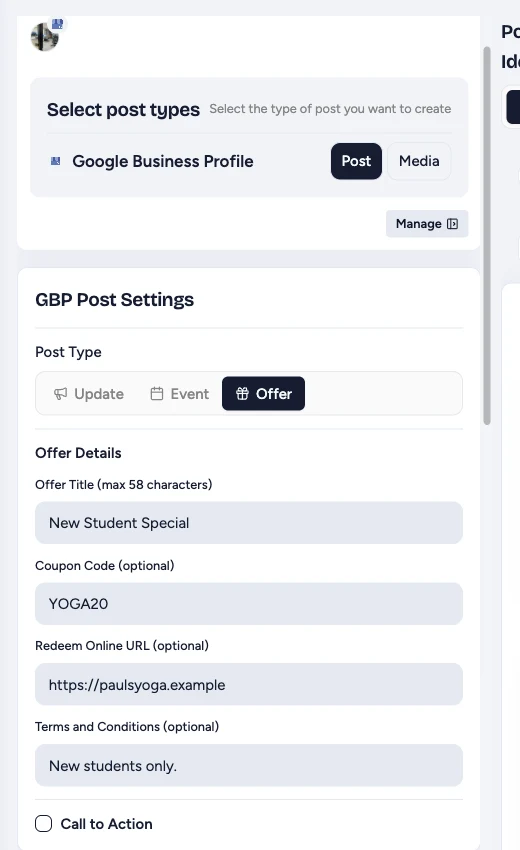
Choose a Google Business Profile account under Post to. The GBP Post Settings card appears below the account selector.
Create an Update, Event, or Offer
Choose Update for a standard post, Event for dated event details, or Offer for a promotion. Offers support a title, coupon code, redemption URL, and terms.
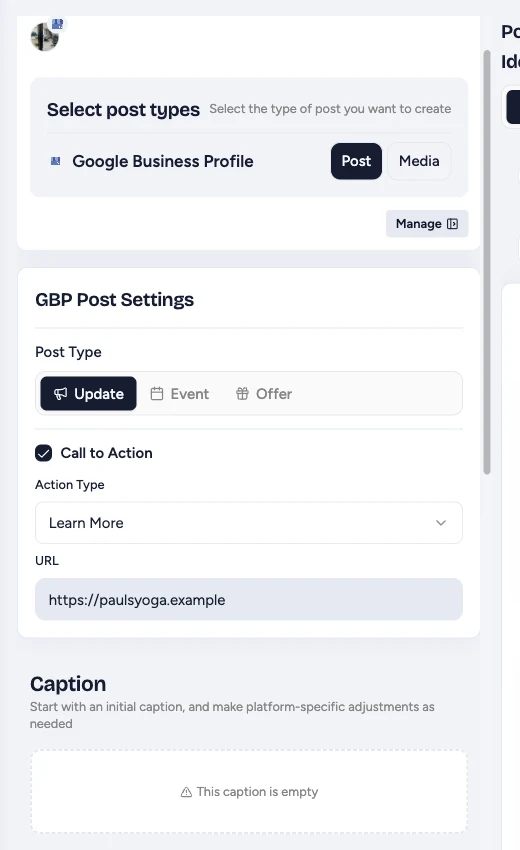
Add a call to action
Enable Call to Action, choose an action such as Learn More, Book, or Order Online, and add the destination URL. The Call action uses the business phone number and does not require a URL.
Compare Facebook, LinkedIn, and X
Facebook workspace posts support a location, media account tags, and alt text. The media tagger is hidden when the post type is Story.
LinkedIn supports platform-specific caption mentions and alt text. It does not show the media account tagger.
X
X workspace posts support a location, media account tags, and alt text.
Platform settings at a glance
| Platform | Settings available in the editor |
|---|---|
| Post, Reel, or Story; workspace location; collaborators for Feed Posts and Reels; Reel cover; media tags outside Stories; alt text | |
| Post or Story; workspace location; media tags outside Stories; alt text | |
| Platform-specific caption mentions and alt text; no media account tagger | |
| TikTok | Creator details, title, privacy, interaction permissions, commercial disclosure, AI disclosure, media metadata, and alt text |
| X | Platform-specific caption mentions, workspace location, media metadata, and alt text |
| Google Business Profile | Update, Event, or Offer; event or offer details; optional call to action; media metadata and alt text |
Save a Draft Before You Leave
Platform settings are saved with the draft, but they do not publish anything by themselves. Use Save as Draft when the post is not ready to send.
Before publishing
Check each selected platform icon before you schedule or publish:
- The caption mention points to the intended account.
- Every media tag is on the correct image and platform.
- Instagram collaborator usernames are spelled correctly and contain no @ symbols.
- Stories do not depend on media tags or collaborators.
- Alt text describes each image.
- TikTok privacy and disclosure settings are complete.
- The preview shows the intended post type and Reel cover.
For the full posting workflow, see Creating Posts. If an account is missing from Post to or search, review Connected Accounts. For upload and format requirements, see File Size and Format Limits.
Related Articles
Add media, write captions, select destinations, and distribute a post.
Connect or repair the social accounts available to each workspace.
Configure one Hub post for multiple workspaces.
Check supported uploads and platform media requirements.